You’re mid-set. The crowd is locked in. Someone shouts a request and you open your library to find it. Then the scroll starts. Folders inside folders. Duplicates everywhere. Three versions of the same track with no labels. Your brain goes into panic mode. That moment right there is what bad organization costs you. It costs you confidence, flow, and sometimes the whole room. This guide covers exactly what you need to fix that: the right tools, a step-by-step process, smart naming strategies, and habits that keep your library clean long term.
Table of Contents
- What you need to organize your DJ music on Windows PC
- Step-by-step: Building a performance-ready library
- Naming conventions that make playlists easy to build
- Verifying your library and avoiding common mistakes
- Why most DJs still struggle with music organization (and how to finally change it)
- Streamline your DJ workflow with Crate Hackers
- Frequently asked questions
Key Takeaways
| Point | Details |
|---|---|
| Use dedicated tools | DJ library managers for Windows save time and eliminate duplicates even when offline. |
| Adopt consistent naming | Clear file names with versions labeled help you find tracks faster on stage. |
| Follow a structured workflow | Import, analyze, deduplicate, and sort in order for seamless preparation. |
| Verify and maintain regularly | Periodically check for errors and keep naming consistent as your library evolves. |
What you need to organize your DJ music on Windows PC
Before you touch a single file, get clear on what you actually need. Jumping in without the right setup wastes time and creates more mess.
Hardware basics:
Your Windows PC does not need to be a powerhouse. A mid-range laptop with at least 8GB of RAM and a solid-state drive handles most library tasks without breaking a sweat. What matters more is storage. A dedicated external SSD (solid-state drive) keeps your music separate from your system files and makes it easy to plug into any setup at a gig.
Software you need:
Good organizing music collections starts with the right software. You have two main approaches: manual folder management through Windows Explorer, or a dedicated DJ library manager that does the heavy lifting for you.
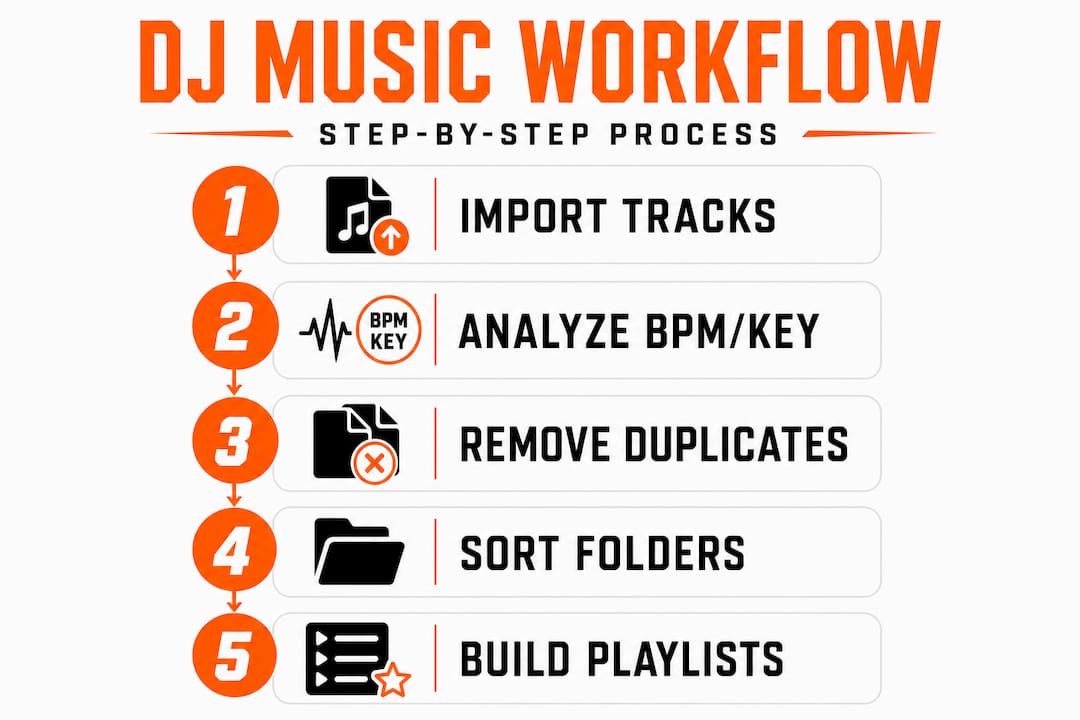
Offline library prep on Windows is fully possible with dedicated DJ library manager software that imports tracks, analyzes BPM and key, deduplicates, and creates playlist sets locally without needing an internet connection. That flexibility is huge for working DJs who prep at home and perform anywhere.
Here is a quick comparison of your main software options:
| Software type | Key features | Best for |
|---|---|---|
| DJ library manager (e.g., DJ Manager) | BPM analysis, key detection, deduplication, playlist sets, offline use | Full library control and fast prep |
| Windows Explorer folders | Free, simple, no install needed | Basic sorting only |
| Dedicated DJ platform tools | Crate building, streaming match, export to hardware | Gig-ready export workflows |
Preparation checklist before you start:
- Back up your entire music folder to a second location (external drive or cloud)
- Consolidate all music into one root folder on your PC or external drive
- Delete obvious junk: corrupted files, zero-byte files, non-audio files mixed in
- Note how many tracks you have so you can measure progress
Do not skip the backup step. Ever. Reorganizing means moving files, and one wrong move can wipe tracks you cannot replace.
Step-by-step: Building a performance-ready library
With your requirements in hand, here is how you actually organize a new or existing music library, step by step.
1. Import all your audio files into your library manager
Open your DJ library manager and point it at your root music folder. Let it scan and import everything. This creates a single catalog you can work from. You are not moving files yet. You are just getting a full picture of what you have.
2. Run BPM and key analysis
Most DJ-specific software methods include automatic BPM and key detection. Run this on your full library before you do anything else. BPM and key data are what make smart playlist building possible later. Skipping this step means sorting blind.
3. Deduplicate before you sort
This is the step most DJs skip and then regret. DJ Manager’s deduplication works by comparing audio files using a content hash, meaning it catches duplicates even if the file names are different. Run deduplication now. You might be shocked how many doubles you have sitting in your library eating up space and cluttering search results.
4. Create your folder and playlist structure
Now you sort. Build a structure that matches how you actually think during a set. Common approaches include:
- Genre-based folders (Hip Hop, House, R&B, Latin)
- Energy-level folders (Openers, Peak Hour, Closers)
- Event-type folders (Wedding, Club Night, Corporate)
- BPM range folders (80-100, 100-120, 120-140)
Most experienced DJs combine two of these. For example, genre folders with energy-level subfolders inside each one. Pick what feels natural to your brain under pressure.
5. Build your sets and playlists
Once your tracks are sorted, build specific playlists for upcoming gigs. A wedding set, a club warm-up, a birthday party mix. These are your ready-to-go lanes. When a gig comes in, you pull from a lane instead of searching from scratch.

Pro Tip: Always analyze and deduplicate before sorting. If you sort first and then find duplicates, you will have to clean up across multiple folders. Do it in the right order and you only do it once.
Here is a comparison of manual folder sorting versus software-managed libraries:
| Factor | Manual folder sorting | Software-managed library |
|---|---|---|
| Setup time | Low | Medium |
| Search speed | Slow (browse folders) | Fast (search by BPM, key, tag) |
| Duplicate detection | Manual, error-prone | Automatic by content hash |
| Playlist building | Manual drag-and-drop | Smart filters and sets |
| Portability | High (just folders) | High (export to DJ software) |
| Long-term maintenance | High effort | Low effort after setup |
The software-managed approach wins for anyone with more than a few hundred tracks. The time you invest in setup pays back every single prep session after that.
Naming conventions that make playlists easy to build
Now that your music is in order, the way you name and label your files can make or break your ability to pull the right track at the right time.
Imagine searching for a track at 2 AM before a gig and seeing five files all named something like “track01.mp3” or “Drake Hotline.mp3.” You have no idea which is the clean version, which is the extended mix, and which is the radio edit with the chorus cut. That confusion costs you time and mental energy you cannot afford.
Best practices for file naming:
- Use a consistent format: Artist Name, Title, Version
- Always include the version in parentheses: (Extended Mix), (Radio Edit), (Instrumental), (Acapella)
- Avoid special characters that Windows does not handle well: slashes, colons, asterisks
- Keep it readable at a glance, not just searchable
- Use proper capitalization so names look clean in any software
Specific examples that work:
- "Drake, Title (Radio Edit).mp3`
Beyonce, Song Name (Extended Mix).mp3Artist Name, Track Title (Club Mix).mp3Artist Name, Track Title (Instrumental).mp3
Faster playlist curation tips always start here. As DJ Will Gill recommends, using file naming conventions like “Artist, Title (Remix)” and labeling versions clearly in the title prevents confusion mid-set and makes it faster to recognize variants even outside your DJ software.
Pro Tip: Put the version label at the front of the title field in your DJ software tags, not just in the file name. That way when you sort by title, all versions of a track group together automatically. You see the Extended Mix right next to the Radio Edit without hunting.
Why this matters more than you think:
When you get a live request and need to find a specific version fast, your eyes scan the list. Clean, consistent naming means your brain processes the list in seconds. Messy naming means your brain has to decode each entry. Over a four-hour set, that cognitive load adds up. Clean names keep you sharp.
Verifying your library and avoiding common mistakes
Once your process is in place, it is crucial to check your work and know how to avoid setbacks going forward.
Verification checklist:
- Search for a track you know you have. Does it appear immediately with the correct version label?
- Check your BPM data. Are most tracks analyzed? Flag any that show zero or obviously wrong values.
- Open your deduplication report. Confirm duplicates were removed and not just flagged.
- Test a playlist. Does it load cleanly? Are all tracks present and playable?
- Export a crate to your DJ software of choice. Does it transfer correctly with all metadata intact?
Common mistakes DJs make:
- Not backing up before reorganizing. One mistake and tracks are gone.
- Using inconsistent naming across different download sources. Some tracks come with “Artist, Title” and others come with “Title, Artist.” Fix this before it compounds.
- Ignoring deduplication. Deduplication by content hash catches copies that manual scanning misses. Skipping it means your library stays bloated.
- Sorting first, analyzing second. Always analyze before you sort.
- Never maintaining the library after the initial clean. New music comes in messy. If you do not process it before it enters your library, the chaos rebuilds itself.
Warning: Playing a gig with unlabeled or mislabeled tracks is a real risk. If your “Extended Mix” is actually a Radio Edit with a cold ending, you will get caught mid-transition. Disorganized libraries do not just slow you down. They create live performance errors that your audience notices.
Sustaining library health over time:
Set a weekly routine. Every time new music comes in, run it through the same process: import, analyze, deduplicate, rename, sort. Do not let it pile up. Fifteen minutes a week beats a six-hour cleanup session every six months.
Use a dedicated “Inbox” folder as a holding zone for new downloads. Nothing goes into your main library until it has been processed. This one habit alone prevents most of the chaos DJs deal with.
Organizing music collections is not a one-time event. It is an ongoing practice. Treat it like that and your library stays performance-ready all year.
Why most DJs still struggle with music organization (and how to finally change it)
Here is the uncomfortable truth. Most DJs already know they should organize their library. They have heard the advice. They have even started the process once or twice. But the library still ends up a mess. Why?
The real problem is not tools. It is psychology.
Perfectionism kills more DJ libraries than laziness ever did. A DJ decides they will organize everything perfectly, genre by genre, BPM by BPM, with custom artwork for every crate. That project feels overwhelming before it even starts. So they delay. Then they delay again. Then a gig comes in and they prep in panic mode, and the cycle continues.
The fix is not a better app. It is a smaller starting point. Organize just this week’s gig prep. Then next week’s. Build the habit in tiny doses and the library takes shape without the paralysis.
“Set and forget” does not work for DJ libraries.
Your library is a living thing. Music comes in constantly. Trends shift. Your gig types change. A library organized perfectly in January looks chaotic by July if you have not maintained it. The DJs who stay organized are not the ones with the best software. They are the ones with consistent weekly habits.
What actually works, from experience:
The DJs who have the cleanest libraries share one trait: they process music before it enters the library, not after. They treat new downloads like raw material that needs processing before it goes on the shelf. They use proven organizing frameworks and stick to them even when it feels tedious.
Build this into your weekly prep routine:
- Monday: Download new music from your record pool or streaming matches
- Tuesday: Process new tracks (analyze, rename, deduplicate)
- Wednesday: Build or update playlists for upcoming gigs
- Thursday: Review and test your sets
That is it. Four focused sessions. Each one short. The result is a library that never gets out of control because you never let it sit long enough to become chaos.
Small consistent habits beat massive tech upgrades every single time.
Streamline your DJ workflow with Crate Hackers
If you are serious about keeping your library tight and your prep fast, you need tools built specifically for that job.
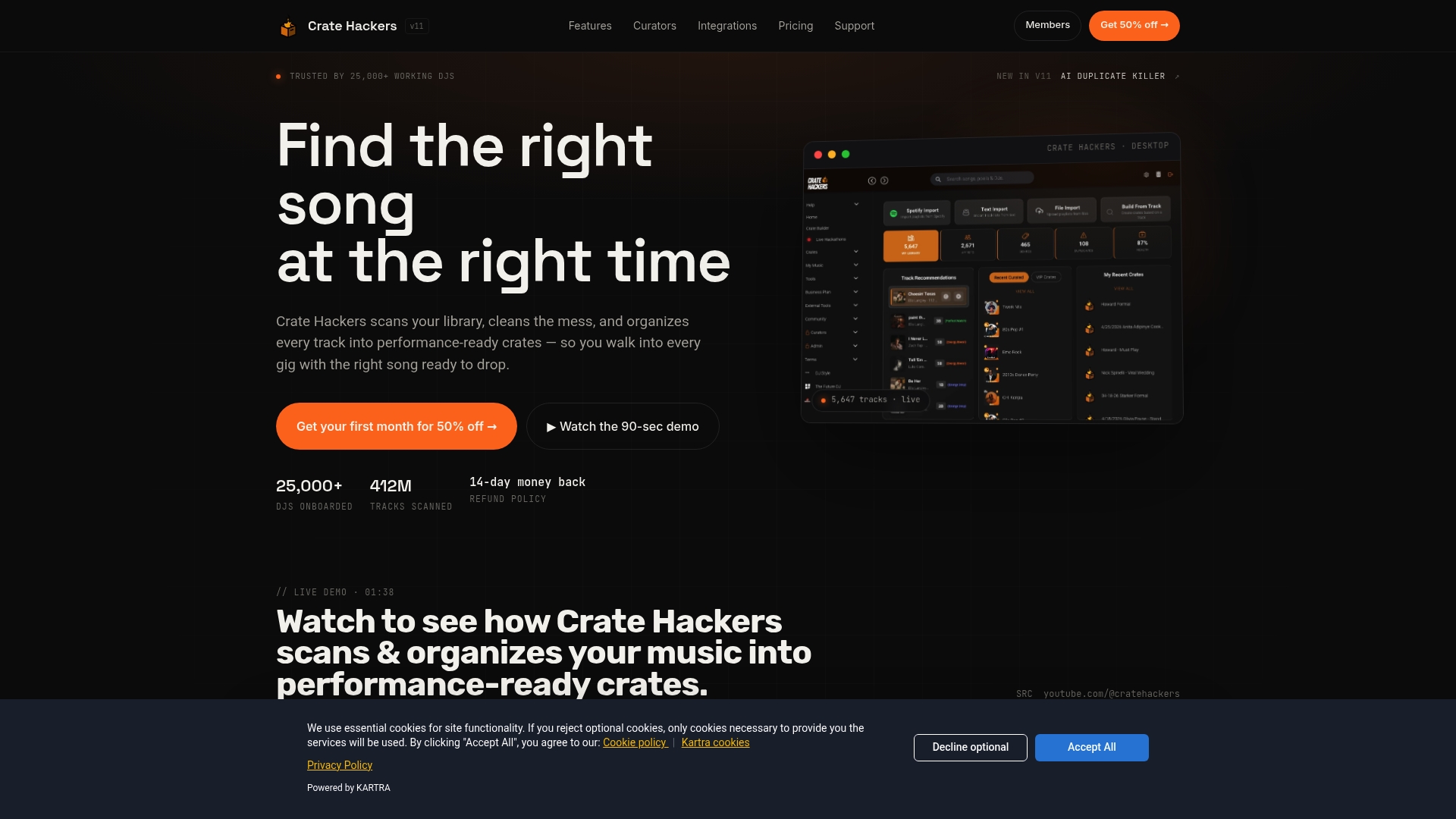
Crate Hackers is built for exactly this. It is an offline-capable desktop app for Windows and macOS that scans your library, kills duplicates automatically, matches your tracks to Spotify and Apple Music playlists, and exports clean crates directly to Serato, Rekordbox, and Virtual DJ. No more manual sorting. No more guessing which version is which. Just a fast, clean, performance-ready library every time you sit down to prep.
Ready to upgrade your library organization? Find the right song every time without the scroll, the panic, or the wasted prep hours.
Frequently asked questions
What is the best free DJ library management software for Windows?
Dedicated tools like DJ Manager offer hardware-agnostic and offline library preparation for Windows users, including BPM analysis, deduplication by content hash, and playlist set creation.
How can I avoid duplicate tracks in my library?
Use a manager tool with a built-in deduplication feature that removes identical audio files by content hash before you begin organizing, catching duplicates even when file names differ.
Why does file naming matter for DJs?
Standardized file names with clear version labels let you recognize track variants quickly during live sets and playlist building, reducing errors and saving real time under pressure.
Can I manage my music offline without internet access?
Yes. A Windows DJ library manager like DJ Manager works fully offline for importing, analyzing, deduplicating, and building sets, with no internet connection required.