
TL;DR:
- Most DJs mistakenly think exporting to USB is just dragging files, which can cause metadata and playback failures. Using Rekordbox’s Export Mode properly packages cue points, beat grids, waveforms, and playlists for CDJ compatibility, avoiding critical errors. Thorough track analysis, correct USB formatting, and regular re-synchronization ensure reliable performance and metadata safety during live sets.
Most DJs assume exporting to USB is just dragging files onto a drive and walking into the club. That assumption has wrecked more sets than bad track selection ever will. Understanding how rekordbox export works for club DJs means knowing that it’s a database build, not a file copy. Your cue points, beat grids, waveform data, and playlist structures all depend on you doing this the right way. This guide covers everything: export modes, USB formatting, metadata handling, and the volume management problem that catches even experienced DJs off guard.
Table of Contents
- Understanding rekordbox export modes and their roles
- Preparing your library and USB for a flawless export
- How rekordbox manages metadata to ensure CDJ compatibility
- Managing volume and gain: why Auto Gain doesn’t carry over to CDJs
- Export methods and workflow tips for optimal live performance readiness
- Why many DJs underestimate the complexity of rekordbox export and how to avoid common pitfalls
- Discover tools to optimize your DJ music library management
- Frequently asked questions
Key Takeaways
| Point | Details |
|---|---|
| Use Export mode | Always use Rekordbox’s Export mode to transfer music and metadata to USB for CDJ playback. |
| Full track analysis | Analyze tracks fully to ensure waveforms and BPMs display correctly on club CDJs. |
| Proper USB formatting | Format USB drives as FAT32 or exFAT to guarantee compatibility with Pioneer CDJs. |
| Manual volume management | Manage loudness manually since Auto Gain doesn’t apply on USB playback through CDJs. |
| Avoid manual file copying | Export via Rekordbox tools instead of file explorer to keep vital cue and grid metadata intact. |
Understanding rekordbox export modes and their roles
To properly prepare your music for performance, you need to start with the right mode. Rekordbox has two distinct operating modes, and confusing them is one of the most common mistakes in a Rekordbox export guide for newer club DJs.
Export Mode is built specifically for preparing your library for USB transfer to CDJs. It’s where you build playlists, set cue points, edit beat grids, and then push everything to a USB drive. This mode treats your library like a database, packaging all your metadata alongside the music.
Performance Mode is for live DJing with a controller connected directly to your laptop. Think of it as your rehearsal room, not your delivery system.
Here’s what each mode actually handles:
- Export Mode: Playlist management, cue point editing, beat grid adjustment, waveform generation, and USB sync
- Performance Mode: Live mixing via connected controllers, real-time effects, and performance features
Using Export mode (not Performance mode) to transfer your playlists, cues, and loops to a USB drive is the correct workflow for CDJ club setups. If you export from Performance Mode thinking it’s the same thing, you’ll show up at the club with files on a USB but none of your cue points or waveform data. That’s a nightmare you can avoid with one click.
Pro Tip: Check your DJ software file reading settings before export. Some DJs accidentally keep Rekordbox in Performance Mode as their default and never realize why their CDJ setups keep failing.
Preparing your library and USB for a flawless export
Once the correct export mode is chosen, proper preparation of your music and USB device is the key next step. Skipping this step is where most club DJ software tips fall flat because they gloss over the specifics.
Follow this order before you touch the export button:
- Analyze every track fully. Rekordbox needs to generate BPM, waveform, and key data for each file. Skipping analysis causes waveform display issues on CDJs, which means you’re flying blind on the decks.
- Format your USB drive correctly. FAT32 or exFAT formatting gives you the broadest compatibility across CDJ models. NTFS or Mac-only formats will cause your drive to fail entirely on some players.
- Use Rekordbox’s export function only. Never drag and drop files from your desktop into the USB. It looks like it works. It doesn’t.
- Safely eject the USB. This sounds obvious. But pulling the drive without ejecting can corrupt the database file Rekordbox writes to the USB, which means none of your metadata loads on the CDJ.
Pro Tip: Keep two USB drives in your bag, both exported and current. If one fails, you’re covered. A second USB takes five minutes to prep and has saved sets more times than any technique ever will.
Good library organization before export also matters. If your folder structure is a mess on your computer, it will be a mess on the USB. Check out how to organize DJ music on PC before your next export session.
How rekordbox manages metadata to ensure CDJ compatibility
With your library and USB prepared, understanding how Rekordbox handles metadata during export clarifies why the correct process is crucial. This is the part most Rekordbox tutorials for DJs skip, and it’s the part that matters most.
When you export through Rekordbox properly, here’s what actually transfers to your USB:
- Hot cue points and their colors
- Beat grids and BPM data
- In and out loop points
- Waveform data for the CDJ display
- Playlist structures and track order
- DJ notes and track ratings
Copying songs via the OS file explorer causes missing waveform and grid information because Rekordbox stores metadata in a separate database file, not embedded in the audio file itself. When you drag and drop, that database doesn’t come along for the ride.
Here’s a simple comparison so the difference is crystal clear:
| Feature | Rekordbox export mode | Manual file copy (drag and drop) |
|---|---|---|
| Cue points transfer | Yes | No |
| Beat grids transfer | Yes | No |
| Waveforms on CDJ | Yes | No |
| Playlist structure | Yes | No |
| Playback on CDJ | Full functionality | Audio only |
| Metadata safety | Protected | Lost |
Pro Tip: After exporting, open the USB on your CDJ at home before the gig. Load a track and verify your hot cues appear. This two-minute check catches database errors before they catch you in front of a crowd.
You can dig deeper into Rekordbox metadata management to understand how different DJ platforms handle file tagging and database structures differently.
Managing volume and gain: why Auto Gain doesn’t carry over to CDJs
Beyond metadata and technical export details, volume management requires a separate approach because of a CDJ limitation most DJs don’t discover until it’s too late.
Rekordbox has an Auto Gain feature. It analyzes each track and applies a loudness correction in real time during playback. When you’re mixing with a controller running through Rekordbox in Performance Mode, it works great. Tracks stay relatively consistent in perceived volume.
Here’s the problem:
- Auto Gain works only within Rekordbox’s software environment
- CDJs don’t apply Auto Gain from USB metadata the way Rekordbox does in controller workflows
- That track that sounded perfect in your bedroom will suddenly be 6dB quieter at the club
- Your next track might slam the speakers while you’re scrambling for the gain knob
“One misconception is assuming that loudness normalization (like Auto Gain) automatically carries to CDJ playback.”
That quote reflects what dozens of DJs find out the hard way every weekend. The fix is straightforward but requires action before export.
How to handle it:
- Use a gain adjustment tool like headroom to pre-process tracks and normalize loudness before export
- Avoid destructive processing that strips metadata from your files
- Build the habit of checking gain levels as part of your Rekordbox playlist management workflow, not as an afterthought
- At the club, manually trim each track’s gain on the CDJ during your set if levels feel off
Volume consistency is what separates a smooth-sounding set from a chaotic one. CDJs give you a trim knob for a reason. Learn to use it actively.
Export methods and workflow tips for optimal live performance readiness
Finally, putting all these pieces together, let’s look at practical export workflows to keep your USBs gig-ready. This is where optimizing Rekordbox for gigs becomes a repeatable system rather than a stressful scramble.
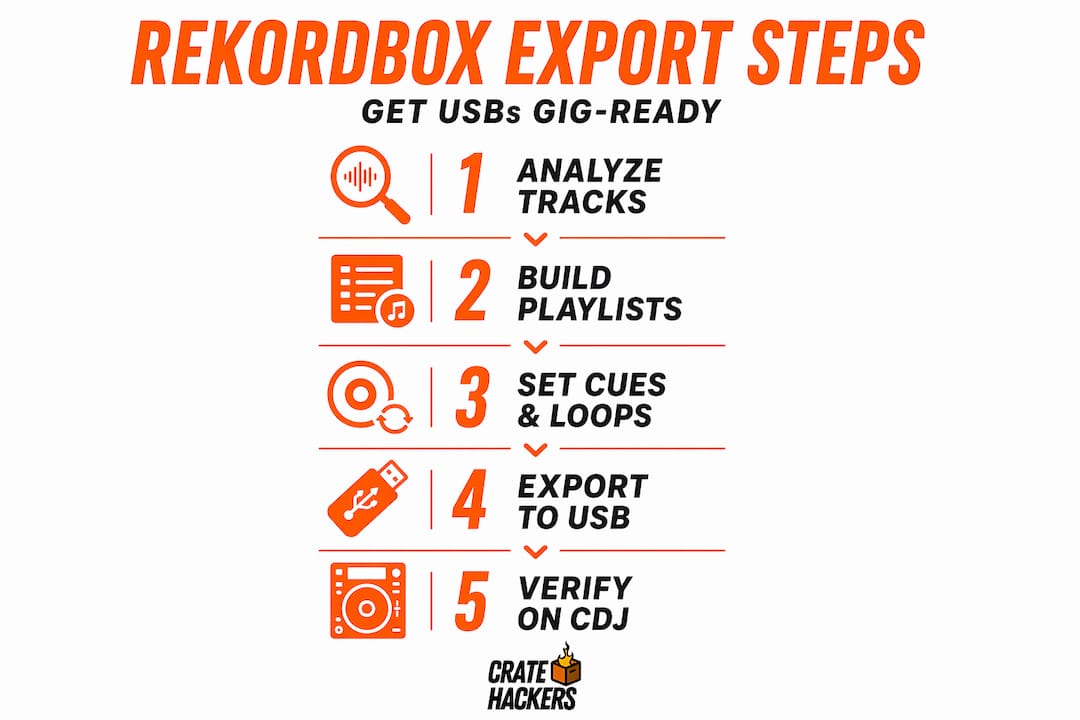
The Sync Manager is considered the best way to export music to your USB drive. It gives you a clear view of what’s on your USB versus what’s in your library, and lets you push changes without re-exporting everything from scratch.
Here’s the workflow that works:
- Open Sync Manager in Export Mode. It’s under the settings menu at the top right.
- Select the playlists you want to export. You can export your full library or specific playlists for that night.
- Review the sync status. Sync Manager shows you which tracks are new, which have been updated, and which are already on the USB.
- Click Sync. Rekordbox handles the rest, including metadata, waveform data, and database files.
- Safely eject and test on a CDJ or your home setup before the gig.
Pro Tip: Create a dedicated “Gig Ready” playlist in Rekordbox that you update each week. It keeps your organized DJ music workflow clean and makes Sync Manager exports faster because you’re only updating one focused playlist instead of hunting through your entire library.
Regularly updating your exports matters too. If you add cue points or fix beat grids on tracks you already exported, those changes don’t automatically appear on your USB. Always re-sync after making any edits.
Why many DJs underestimate the complexity of rekordbox export and how to avoid common pitfalls
Here’s an uncomfortable truth: most set failures that DJs blame on “CDJ problems” or “bad venue gear” are actually preparation failures. The gear is fine. The export wasn’t.
The mental model most DJs bring to this process is wrong from the start. They think of USB export as moving files, like sending an email attachment. But Rekordbox works more like a database application. Your USB isn’t just storage; it’s a portable copy of a structured database that CDJs know how to read. When you skip steps or use the wrong method, you’re handing the CDJ a broken database and expecting it to perform miracles.
The Auto Gain misconception makes this worse. A lot of DJs coming from controller setups don’t realize their workflow has a safety net built in that disappears the moment they go USB. Loudness normalization does not automatically carry to CDJ playback. That gap in understanding causes volume panic mid-set, which throws off timing, focus, and crowd energy all at once.
There’s also an organizational debt problem. DJs who let their libraries get messy think that exporting to USB will somehow clean things up. It won’t. A disorganized library produces a disorganized USB. Bad naming, missing BPM data, unfixed beat grids, these all multiply on the CDJ.
The fix is a shift in mindset. Start thinking about your USB the way a database admin thinks about a production server. Accuracy matters. Process matters. Testing before deployment is not optional.
Get your DJ file management approach solid before export time, and the export itself becomes fast and reliable instead of a nerve-wracking final step.
Discover tools to optimize your DJ music library management
Walking into a club confident starts long before you plug in the USB. It starts with a library that’s actually ready.
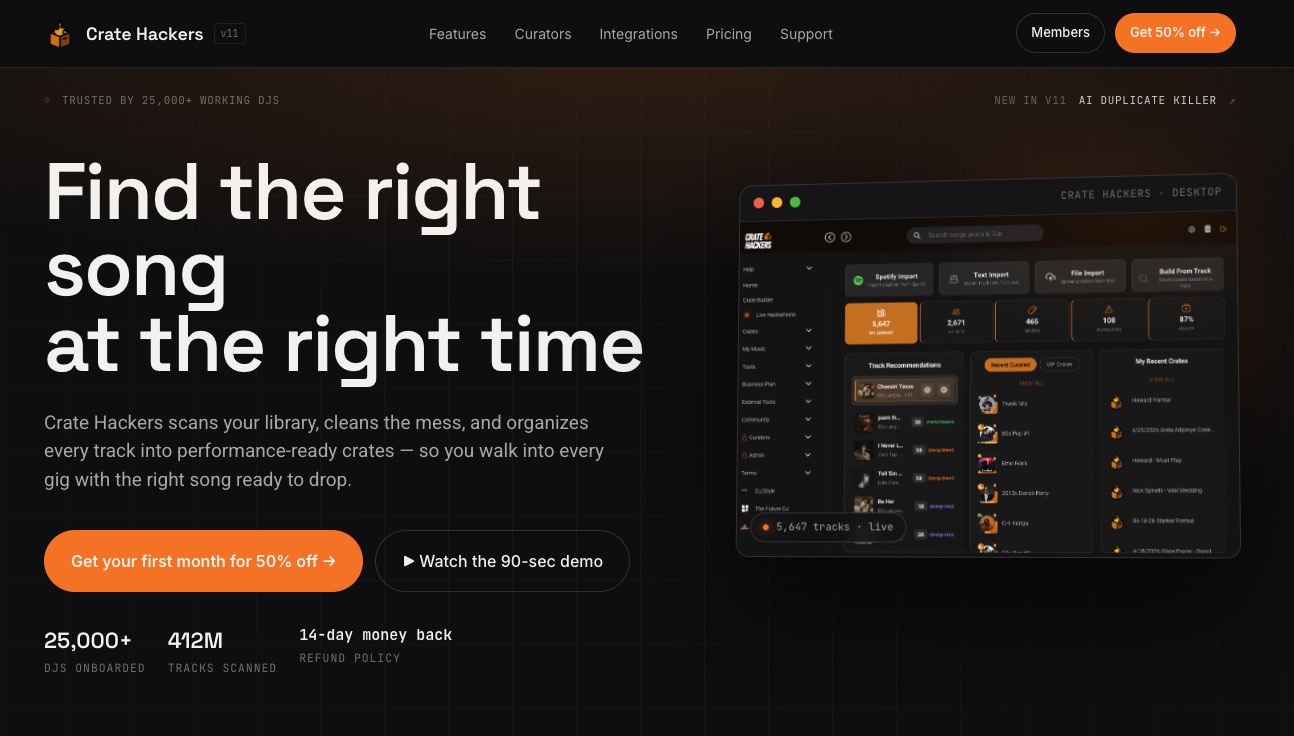
Crate Hackers is built for DJs who want that confidence without the hours of manual prep. The platform scans your entire music collection, kills duplicates, matches your tracks to streaming playlists from Spotify, Apple Music, and Tidal, and exports curated crates directly to Rekordbox. That means your library is organized, your playlists are clean, and your metadata is in order before you ever open Sync Manager. Whether you’re prepping for a club night or a mobile event, Crate Hackers cuts the prep time and removes the guesswork so your exports land clean every time.
Frequently asked questions
What is the difference between Export mode and Performance mode in Rekordbox?
Export mode prepares your music and metadata for USB export to CDJs, while Performance mode is for live DJing with controllers. Using Export mode is essential for USB compatibility because it packages your playlists, cues, and loops for CDJ playback.
Why should I analyze tracks fully before exporting?
Fully analyzing tracks generates the BPM, waveform, and key data that CDJs need for accurate display and beatmatching. Skipping this step leads to missing or incorrect waveform visuals on the player, which makes mixing much harder live.
Can CDJs apply Rekordbox’s Auto Gain feature automatically?
No. CDJs don’t apply Auto Gain from USB exports the way Rekordbox does in controller workflows. You need to manually manage gain levels or pre-process your tracks for consistent loudness before the gig.
What USB format is best for Rekordbox exports to CDJs?
FAT32 or exFAT formatting gives you the broadest compatibility with Pioneer CDJ models. These formats ensure your music is recognized and that metadata loads correctly on arrival.
Is it okay to copy music files to USB using the computer’s file explorer?
No. Copying files directly via the OS causes missing waveform and grid metadata because Rekordbox stores that data in a separate database. Always export through Rekordbox’s Export mode or Sync Manager to keep your CDJ setup fully functional.