TL;DR:
- Djay Pro offers full native Apple Music integration and offline caching, making it the best choice for DJing with Apple Music.
- For reliable live performances, DJs should download tracks for offline use and build hybrid libraries combining streaming and owned files to mitigate DRM restrictions and internet issues.
You built the perfect Apple Music playlist. Now you’re staring at your DJ software and wondering why none of it shows up. That’s the wall every DJ hits when they try to sync Apple Music playlist to DJ software for the first time. The good news: it’s solvable. The frustrating news: there’s no single “connect and go” button. This guide walks you through exactly what you need, how to do it step by step, what breaks, and how to fix it before you’re standing in front of a crowd hoping for the best.
Table of Contents
- Key Takeaways
- How to sync Apple Music playlist to DJ software
- Step-by-step syncing with djay Pro
- Troubleshooting common syncing problems
- Verifying and optimizing playlists before live shows
- My take on Apple Music in a real DJ workflow
- Build your library smarter with Cratehackers
- FAQ
Key Takeaways
| Point | Details |
|---|---|
| djay Pro is your best bet | It’s the only DJ software with full native Apple Music integration and offline caching. |
| Streaming alone isn’t safe for live gigs | Always download tracks for offline use inside djay Pro before any performance. |
| DRM limits your options | Apple Music tracks stay locked to the djay Pro environment and cannot be exported to Rekordbox or Serato. |
| Test offline mode before every show | Toggle Airplane Mode 15 minutes before your set to confirm cached tracks play without interruption. |
| Hybrid libraries give you the most control | Pairing Apple Music streaming with locally owned files reduces risk and expands your toolset. |
How to sync Apple Music playlist to DJ software
Before you touch a single setting, you need to know what you’re working with. Not all DJ software treats Apple Music the same way.
Apple Music support varies across DJ platforms. djay Pro by Algoriddim fully supports it. Serato and Rekordbox have limited Apple Music integration. Virtual DJ does not support Apple Music streaming at all. That’s not a minor detail. It determines your entire workflow before you even open a playlist.
What you actually need
Here’s what the setup requires:
- Apple Music subscription: Individual plan at $10.99/month or a Family/Student tier
- djay Pro: $49.99/year on Mac or $19.99/year on iOS/iPadOS
- Compatible device: macOS, iOS, or iPadOS. Windows is not currently supported for Apple Music integration in djay Pro
- Stable internet: Required for streaming, though offline caching reduces this dependency
The total annual cost for this setup runs approximately $182 when you combine both subscriptions on Mac.
| Tool | Cost | Apple Music Support | Best For |
|---|---|---|---|
| djay Pro (Mac) | $49.99/year | Full native integration | Performance and set prep |
| djay Pro (iOS/iPadOS) | $19.99/year | Full native integration | Mobile and tablet DJing |
| Serato DJ Pro | $9.99/month | Limited | Local file DJs adding streaming |
| Rekordbox | $9.99/month | Limited | CDJ-based workflows |
| DJ.Studio | Varies | Playlist management | Set planning and export |
One more thing worth knowing before you start: Apple Music tracks are DRM protected and not exportable as local files. You access them as long as your subscription stays active. That changes how you think about library building.
Step-by-step syncing with djay Pro
This is where most DJs get it right or completely blow it. Follow this in order.
-
Download and install djay Pro on your Mac, iPhone, or iPad. Open the app and sign in with your Apple ID if prompted.
-
Connect your Apple Music account. Go to Settings inside djay Pro and enable Apple Music access. The app will request permission through iOS or macOS. Grant it. This is what unlocks your playlists inside the software.
-
Browse your Apple Music playlists. In the djay Pro library panel, you’ll see a section for Apple Music. Your playlists appear here, including any you’ve built directly in the Apple Music app.
-
Load a track to test. Drag a track from your Apple Music playlist onto a deck. If it streams without issues, your connection is working.
-
Download tracks for offline mixing. Tap or right-click on individual tracks and select “Download for Mixing.” This caches a copy inside djay Pro. Streaming-only playback is risky for live gigs because internet instability can cut your audio mid-set.
-
Set cue points and hot cues. Once a track is loaded or downloaded, add your cues. These save inside djay Pro’s own database and will be there the next time you load the track.
-
Use DJ.Studio for additional planning. If you want to map out full set structures across multiple platforms, DJ.Studio connects multiple DJ libraries including Apple Music and lets you export planned mixes to various DJ platforms. It’s a solid apple music playlist manager companion for set prep.
-
Verify your playlist before the gig. We’ll cover this in detail in the next section, but never skip this step.
Pro Tip: Download your full performance playlist at least 24 hours before your gig. Cache builds can slow down on older devices. Give it time.
Learning how to sync playlists for DJing is half technical and half habit. The technical part takes 20 minutes. The habit of prepping offline takes discipline.
Troubleshooting common syncing problems
Something went wrong. Here’s what’s actually happening and how to fix it.
Playlists not showing up
If your Apple Music playlists don’t appear inside djay Pro, the most common cause is a permissions issue. Go to your device’s Settings, find djay Pro under Privacy or Apps, and confirm Apple Music access is enabled. On Mac, check System Preferences under Privacy and Security. Log out of djay Pro, restart the app, and log back in.
If playlists still don’t appear, confirm your Apple Music subscription is active. djay Pro won’t show content from a lapsed account.
Metadata and cue points not syncing
Synchronizing playlists across Apple Music and DJ software requires careful metadata handling. If cue points disappear or track info looks wrong, try a manual library refresh inside djay Pro. Third-party tools may also be needed if you’re seeing consistent metadata mismatches.
Advanced features locked out
If Neural Mix or stem separation isn’t working on certain tracks, the track is likely streaming rather than downloaded. Apple Music tracks must be downloaded as local files within djay Pro to unlock features like Neural Mix stem separation and recording. Streaming limits these functions due to DRM restrictions. Download the track first, then try again.
Trying to move Apple Music tracks to Rekordbox or Serato
This is the wall that stops a lot of DJs cold. Apple Music downloads in djay Pro are cached for offline use and cannot be exported as DRM-free files for other DJ software. They are tied to the djay Pro environment. If you need those tracks in Rekordbox or Serato, you need to purchase them separately as local files.
Quick fixes to run through
- Restart djay Pro and reload the playlist
- Check your internet connection if tracks fail to load while streaming
- Re-download any track that skips or buffers during playback
- Clear djay Pro’s cache if the app slows down significantly
- Update djay Pro to the latest version before any major gig
Pro Tip: If you’re playing a venue with uncertain Wi-Fi, treat every track as if there’s no internet. Download everything. Don’t gamble on the venue’s router.
Reading about music file management in DJ software can also help you spot file-level issues that syncing problems sometimes disguise.
Verifying and optimizing playlists before live shows
You’ve synced. You’ve downloaded. Now you need to confirm it all actually works before you’re live.
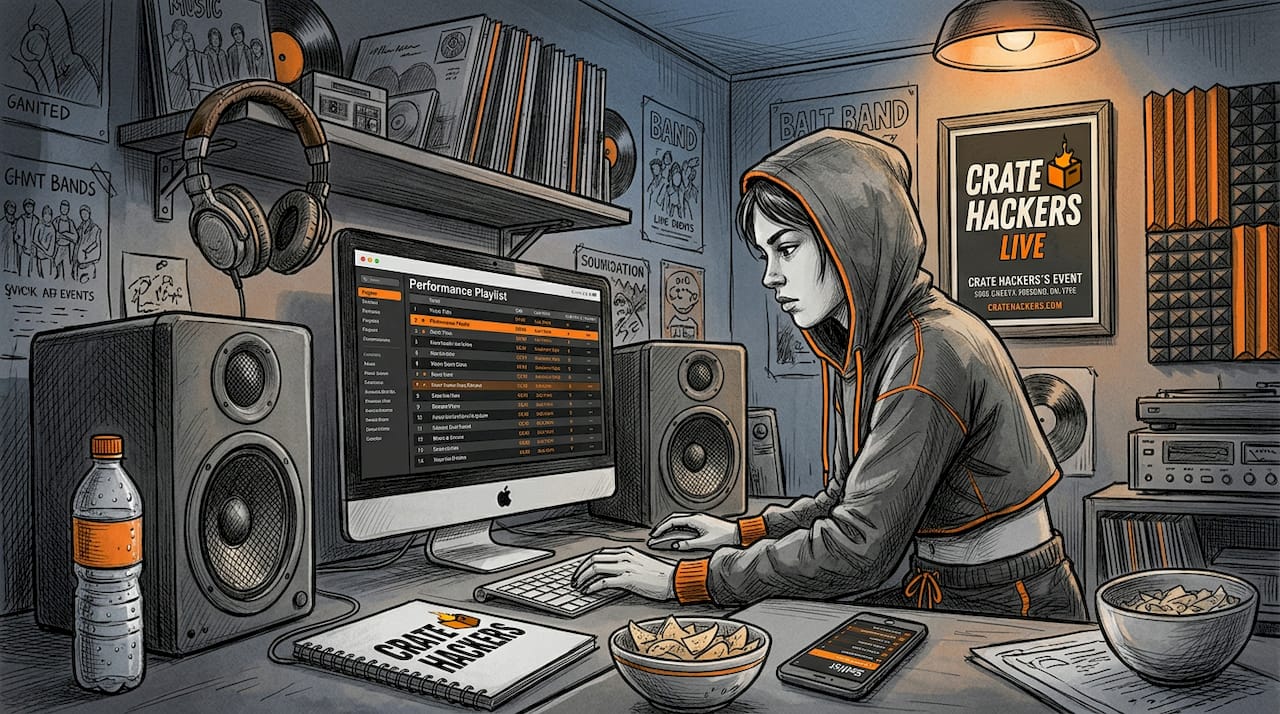
Start with the Airplane Mode test. Experienced DJs enable Offline Mode and Airplane Mode 15 minutes before gigs to confirm cached tracks play without any streaming dependency. Do this at home first. If a track fails with no internet, you haven’t properly downloaded it.
What to check before every performance
- Offline playback: Load each track in your set and confirm it plays without internet
- Cue points and hot cues: Open each track and verify your cues are in place
- Loops: Check that saved loops load correctly, especially for intro and outro sections
- Metadata: Confirm BPM, key, and artist info are accurate. Wrong BPM throws off beatmatching
- Playlist order: Verify the sequence matches your planned set flow
- Backup tracks: Have at least five backup tracks downloaded for every 30 minutes of planned performance
Streaming vs. local files for live performance
| Factor | Apple Music Streaming | Local Files |
|---|---|---|
| Performance risk | Higher (internet dependent) | Lower (no network needed) |
| Cost per track | Included in subscription | Purchase price per track |
| Advanced DJ features | Limited (DRM restrictions) | Full access |
| Scratch and manipulation | Limited | Full capability |
| Long-term library stability | Subscription dependent | Owned permanently |
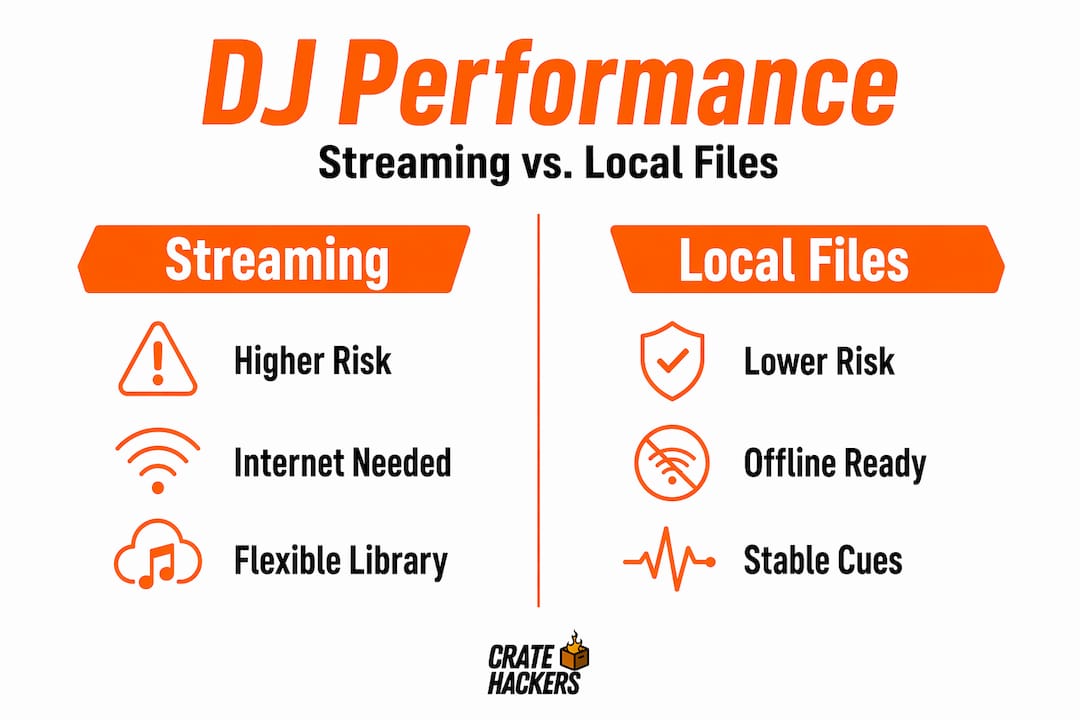
Apple Music’s streaming model works best for practice, discovery, and set planning. For live performance, hybrid libraries combining streaming and local files give you the most control.
Building a hybrid approach also feeds your long-term library. Use Apple Music to discover and plan. Buy the tracks you’ll play live and own them. That’s the workflow that holds up over years of gigging.
Organizing your DJ music library with a system that accounts for both streaming and local files keeps you from scrambling at 11 PM on a Saturday.
My take on Apple Music in a real DJ workflow
I’ve watched a lot of DJs lean hard into Apple Music streaming as their primary library. I get the appeal. Over 100 million tracks, accessible with beatmatching, EQ, effects, and AI stems baked right into djay Pro. The math seems obvious.
But here’s what I’ve actually learned from watching it play out in real gig conditions: streaming is a discovery engine, not a performance foundation. The DJs who use it well treat Apple Music like a research tool. They find tracks, plan sets, test ideas. Then they buy the files they’ll actually play live.
The subscription dependency is the part that trips people up long term. Your library is only as permanent as your payment method. One lapsed card and your cues, your playlists, your set history, are all there but inaccessible. That’s a terrible feeling three hours before a gig.
The hybrid approach is where I keep landing. Stream for discovery and prep. Own for performance. Use apple music DJ tools inside djay Pro for the creative work. Maintain your local collection for anything that touches a crowd.
One thing I rarely see mentioned in official documentation: scratching and heavy pitch manipulation require locally downloaded tracks. Streamed tracks have limited scratch capability due to how audio caching works. If you’re a technical DJ who relies on those skills, this is not a minor footnote.
Experiment. Explore what Apple Music unlocks for your workflow. But go into every show with your most important tracks downloaded and backed up. That habit has saved sets I didn’t even know needed saving.
— Dominick
Build your library smarter with Cratehackers
Syncing Apple Music is one piece of the puzzle. The bigger challenge is keeping your full library clean, organized, and ready for any gig.
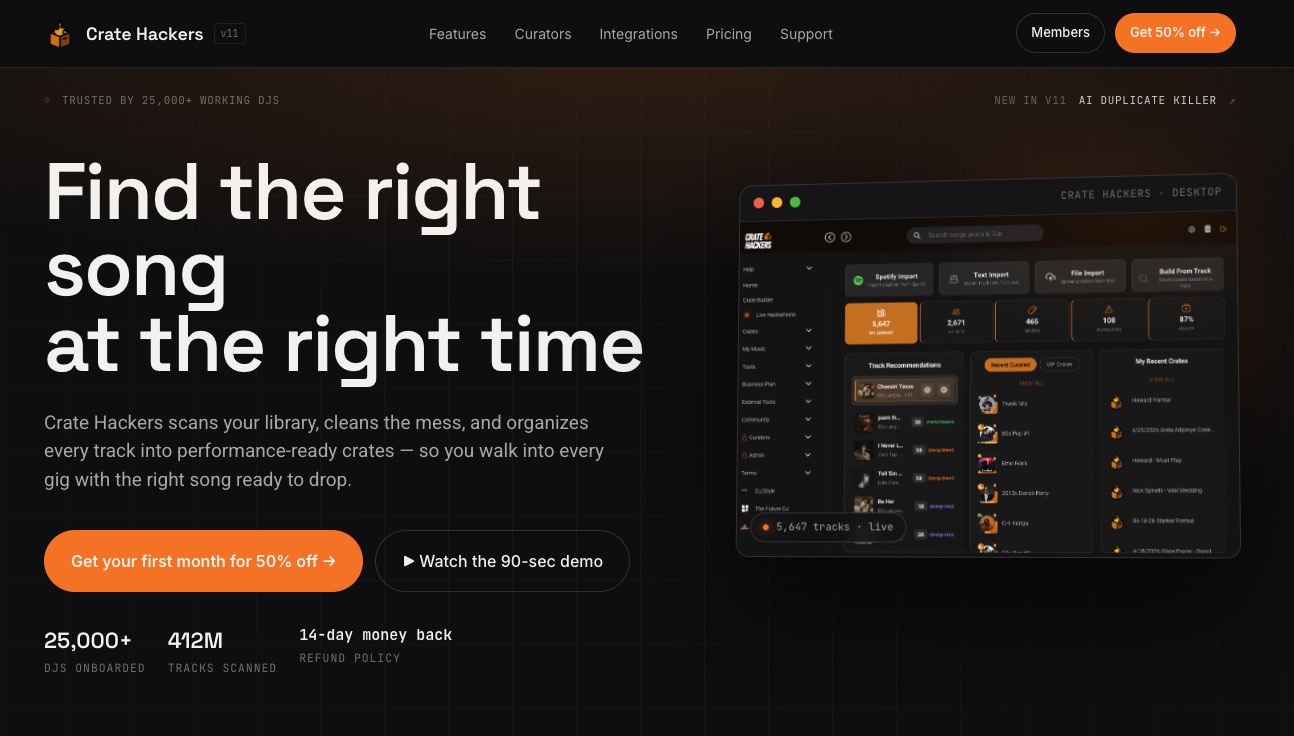
That’s exactly what Cratehackers was built for. The platform scans your local collection, matches it against your streaming playlists from Apple Music, Spotify, and Tidal, and helps you build performance-ready crates fast. It handles duplicate detection, automated crate building, and exports directly to Serato, Rekordbox, and Virtual DJ. Whether you’re managing thousands of local files or building a hybrid library alongside your Apple Music sync workflow, Cratehackers removes the manual grind so you can focus on the music. Less scrolling. More playing.
FAQ
What is the best DJ software for Apple Music?
djay Pro by Algoriddim is the best DJ software for Apple Music because it offers full native integration including offline caching, AI stems, cue points, and effects. Serato and Rekordbox support Apple Music with limitations, and Virtual DJ does not support it at all.
Can I sync Apple Music playlists to Rekordbox or Serato?
Not directly. Apple Music tracks are DRM protected and cached only within djay Pro. You cannot export them as local files to Rekordbox or Serato. To use specific tracks in those platforms, you need to purchase them as DRM-free files.
How do I download Apple Music tracks for offline DJ use?
Inside djay Pro, right-click or long-press any track and select “Download for Mixing.” This caches the track locally within the app for offline playback. Always do this before any live performance to remove internet dependency.
Why won’t my Apple Music playlists show up in DJ software?
Check that Apple Music permissions are enabled for djay Pro in your device’s privacy settings. Also confirm your Apple Music subscription is active. A lapsed subscription or denied permission will prevent playlists from loading.
Is Apple Music good for live DJ performances?
Apple Music works well for practice and set planning, but subscription dependency limits live performance reliability. Most experienced DJs use it alongside a local file library to reduce risk during live shows.