TL;DR:
- Rekordbox cannot directly import DRM-protected Spotify tracks due to encoding in OGG format.
- Most DJs convert Spotify playlists to MP3, WAV, FLAC, or AIFF using third-party tools for offline, reliable performance.
- Organizing converted files in a fixed folder and retaining metadata helps maintain a stable and efficient DJ library.
You’ve spent hours building the perfect Spotify playlist for your next gig. Then you open Rekordbox and hit a wall. There’s no direct way to import Spotify playlist to Rekordbox, and suddenly that carefully curated set list feels out of reach. The good news is that there’s a clear path forward. This guide covers exactly what blocks the import, which tools actually solve it, and how to get your Spotify tracks into Rekordbox as performance-ready local files, step by step.
Table of Contents
- Key takeaways
- How to import Spotify playlists to Rekordbox
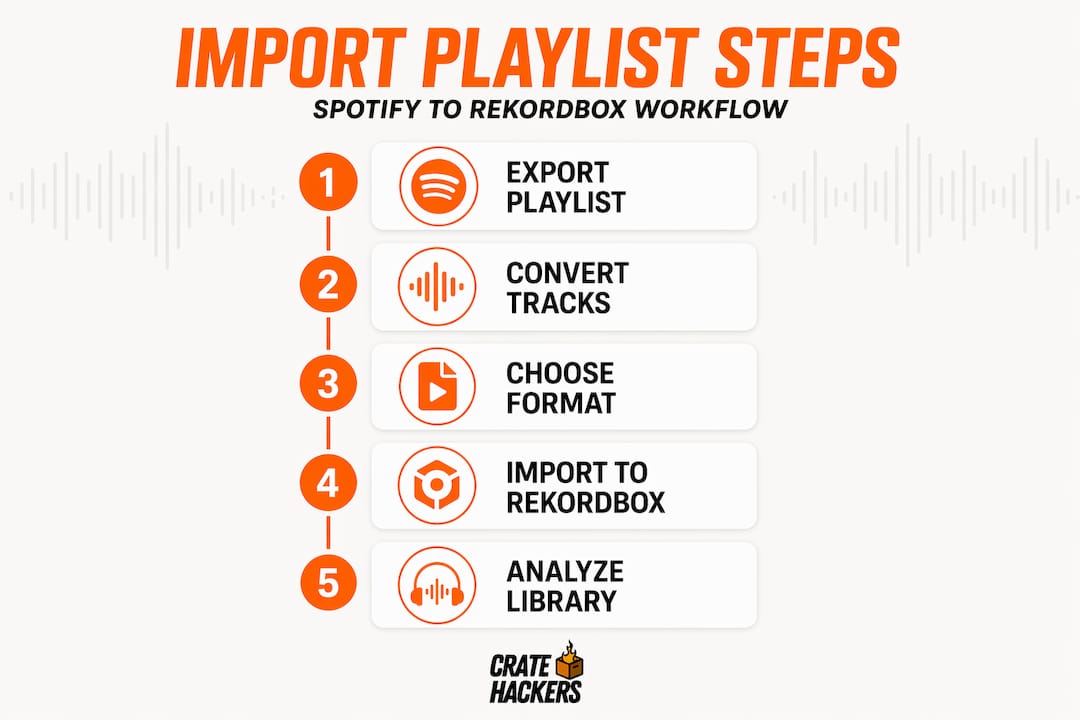
- Step-by-step: converting and importing
- Troubleshooting common import issues
- Optimizing your Rekordbox library workflow
- My honest take on Spotify and Rekordbox
- Build your DJ library smarter with Cratehackers
- FAQ
Key takeaways
| Point | Details |
|---|---|
| Direct import is blocked | Spotify’s DRM protection prevents Rekordbox from reading tracks without conversion first. |
| Conversion tools are required | Use a third-party converter to export Spotify tracks as MP3, WAV, FLAC, or AIFF before importing. |
| Local files are the most reliable | Converting to local files gives you offline access, full analysis, and stable performance prep. |
| Official streaming has real limits | Rekordbox Spotify integration requires Premium and a live internet connection at all times. |
| Folder structure matters | Keep converted files in a fixed folder to prevent broken links and missing track errors in Rekordbox. |
How to import Spotify playlists to Rekordbox
Before you touch a single button, you need to understand why the direct route does not work. Spotify tracks are DRM protected and encoded in OGG format, which Rekordbox cannot natively read. That is the core blocker. You cannot drag a Spotify track into Rekordbox the way you would an MP3 sitting on your desktop.
There are two paths available to you.
Path 1: Official Rekordbox streaming integration. Rekordbox does allow some Spotify connectivity, but it is limited. Streaming requires Spotify Premium and a stable internet connection at all times. Tracks cannot be used offline. If your internet drops mid-set, so does your music.
Path 2: Convert Spotify tracks to local files. This is the path most working DJs take. You use a third-party conversion tool to download your Spotify playlist as local audio files in a Rekordbox-compatible format, then import those files. It takes more setup, but it gives you complete control.
Tools and formats you need
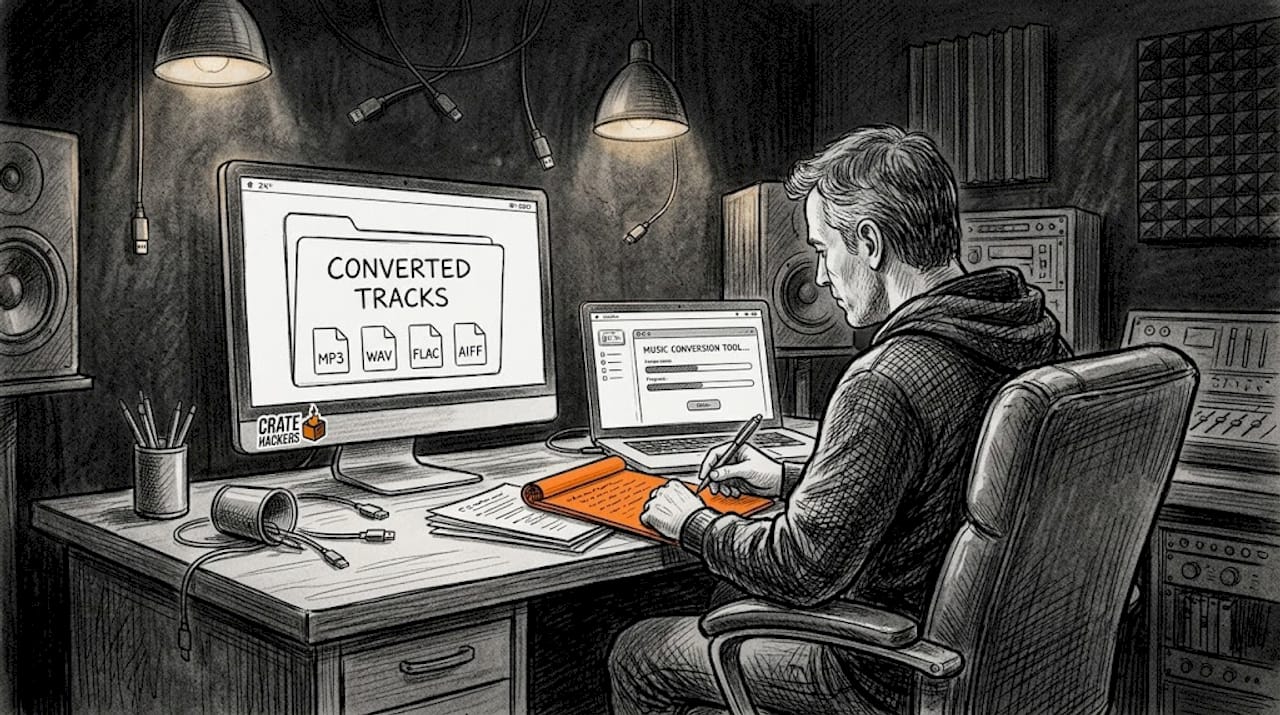
Rekordbox works with MP3, WAV, FLAC, and AIFF. Choose a Rekordbox-compatible output format before converting anything. MP3 at 320kbps is the most common choice for storage efficiency. WAV or AIFF are better for uncompressed playback quality.
Here is a quick comparison of the main Spotify conversion tools available in 2026:
| Tool | Output formats | Metadata retention | Speed | Price range |
|---|---|---|---|---|
| Sidify | MP3, AAC, WAV, FLAC | Yes | Fast | Paid |
| TuneFab | MP3, M4A, WAV, FLAC | Yes | Fast | Paid |
| AudFree | MP3, AAC, WAV, FLAC | Yes | Moderate | Paid |
| AudiCable | MP3, AAC, FLAC, WAV | Yes | Fast | Paid |
All four tools work on both macOS and Windows. Conversion tools that retain metadata, including track name, artist, and album artwork, are worth paying for. That metadata makes your Rekordbox library far easier to manage and search.
Pro Tip: Always pick a conversion tool that preserves ID3 tags. Rekordbox reads those tags to populate your library columns. Without them, you are manually labeling hundreds of tracks.
Step-by-step: converting and importing
Once you have your conversion tool installed and your output format set to something Rekordbox can read, follow this process.
-
Open your conversion tool and log into Spotify. Most tools use Spotify’s web player or a built-in browser to access your account. Log in with your credentials.
-
Select the playlist you want to convert. Copy your Spotify playlist URL and paste it into the tool, or browse directly to the playlist within the app.
-
Set your output format. Choose MP3 (320kbps), WAV, FLAC, or AIFF. Pick a dedicated output folder on your hard drive. Something like a folder labeled “Spotify Converted” inside your main DJ music directory works well.
-
Start the conversion. The tool downloads and converts each track. This can take a few minutes for large playlists. Let it finish completely before moving on.
-
Open Rekordbox. Go to File > Import > Import Folder. Select the folder containing your converted files. Rekordbox will pull all the tracks into your library.
-
Alternatively, drag and drop. Open your converted folder in Finder or Windows Explorer. Select all files and drag them directly into the Rekordbox track library panel.
-
Create a playlist in Rekordbox. Once imported, right-click in the playlist panel on the left side and create a new playlist. Drag your imported tracks in to recreate your Spotify playlist structure inside Rekordbox.
-
Run track analysis. Analyze BPM, key, and waveform for all imported tracks. Right-click your playlist, select Analyze Tracks, and let Rekordbox do its thing. This step is non-negotiable for proper mixing prep.
-
Add cue points and memory cues. With analysis done, drop in your cue points, loops, and grid corrections while you still have time before the gig.
Pro Tip: For large Spotify playlists with 100 or more tracks, analyze new tracks selectively rather than re-analyzing your entire library. It saves significant time and keeps your CPU from choking on a backlog.
If you work on a mobile setup or laptop at venues, this local file method also means your music travels with you. No streaming required on site.
Troubleshooting common import issues
Even with the right tools, things go sideways. Here is what to look for.
Tracks not appearing after import. This usually comes down to format. If your conversion tool exported files in a format Rekordbox does not support, they will be silently ignored. Go back to your conversion tool, check the output format setting, and reconvert to MP3, WAV, FLAC, or AIFF.
Rekordbox Spotify integration showing empty playlists. This is a known pain point. Spotify playlists can appear empty after updates to the Rekordbox streaming integration. Running a network test, logging out and back into Spotify inside Rekordbox, and checking for software updates to both apps usually resolves it. It is also worth noting that Rekordbox officially supports only a few streaming services, and its Spotify integration has historically been inconsistent.
Analysis errors on imported tracks. If BPM or key analysis fails or returns odd results, right-click the problem tracks and select Analyze Tracks manually. Do not rely on batch re-analysis for a whole library when only a handful of tracks are affected.
Missing file errors after you move folders. This one catches DJs off guard. Moving converted files after Rekordbox has already indexed them breaks the reference path. Rekordbox will flag those tracks with an exclamation mark. To fix it, right-click and use “Relocate” to point Rekordbox to the new file location. Better yet, set your folder structure before you import and commit to it.
Broken file links mid-gig are the kind of panic you do not need. Build your folder structure once, stick to it, and never reorganize it the night before a show.
Streaming stops working mid-session. If you are using the official Rekordbox Spotify streaming route rather than local files, any network disruption will cut your access. This is exactly why converting to local files is the more reliable choice for live performance.
Optimizing your Rekordbox library workflow
Getting the tracks in is only half the job. How you organize them determines whether your library works for you at showtime or against you.
- Keep converted Spotify files in a dedicated subfolder. Label it clearly, like “Spotify 2026 Imports.” This makes it easy to find, back up, and avoid mixing up sources.
- Use Rekordbox tags and color coding. Tag imported tracks by genre, energy level, or key. Color-coded cue points make transitions faster to read in the dark.
- Supplement your library with supported sources. Rekordbox integrates directly with services like Beatport, Tidal, and SoundCloud. Tracks from those platforms work natively with fewer conversion headaches. Build a Spotify-sourced base and layer those in for live discovery.
- Back up your library regularly. Go to File > Library > Backup in Rekordbox. Do this before every major import session. If something breaks mid-import, you can restore your last clean state.
- Export metadata for sharing. Sharing playlists with another DJ or backing up to a new machine requires exporting audio files alongside the Rekordbox XML file. That XML carries your cue points, beat grids, and all the prep work you have done.
Pro Tip: Pair your Rekordbox library with a smart music organization system on your local drive. A clean folder structure on the outside means a clean library on the inside. It is two minutes of discipline that saves hours of fixing broken links.
Reading a room well also depends on having the right tracks ready to pull. When you are working weddings or corporate events, the ability to find the right song fast is as important as reading crowd energy. Local files in Rekordbox give you that speed.
My honest take on Spotify and Rekordbox
I have been through this workflow more times than I can count. And here is what I actually think: the official Rekordbox Spotify integration sounds great on paper and consistently underdelivers in practice.
Depending on a live internet stream during a performance is a real risk. I have seen it fail at corporate gigs with “great” venue Wi-Fi. I have seen it stall at outdoor events with spotty LTE. The streaming integration is useful for browsing and discovering, not for performing.
Converting to local files is not glamorous, but it is the only workflow I actually trust on stage. You prep beforehand, the files live on your drive, and nothing can take them away from you mid-set. That is the deal.
The other thing I keep seeing DJs skip is the metadata step. They convert tracks, import them in bulk, and end up with a library full of untitled tracks and no artwork. Then they spend twice as long searching for the right song. Pick a conversion tool that retains ID3 tags. It is not optional.
My advice for future-proofing your setup: do not build your performance library around a streaming dependency. Use Spotify for discovery and curation. Use local files for execution. Keep them clearly separated in your library so you always know what you can count on when the gear is hot and the room is watching.
— Dominick
Build your DJ library smarter with Cratehackers
Managing Spotify imports is one piece of the puzzle. The bigger challenge is keeping your entire DJ library clean, fast, and performance-ready without spending hours on manual work.
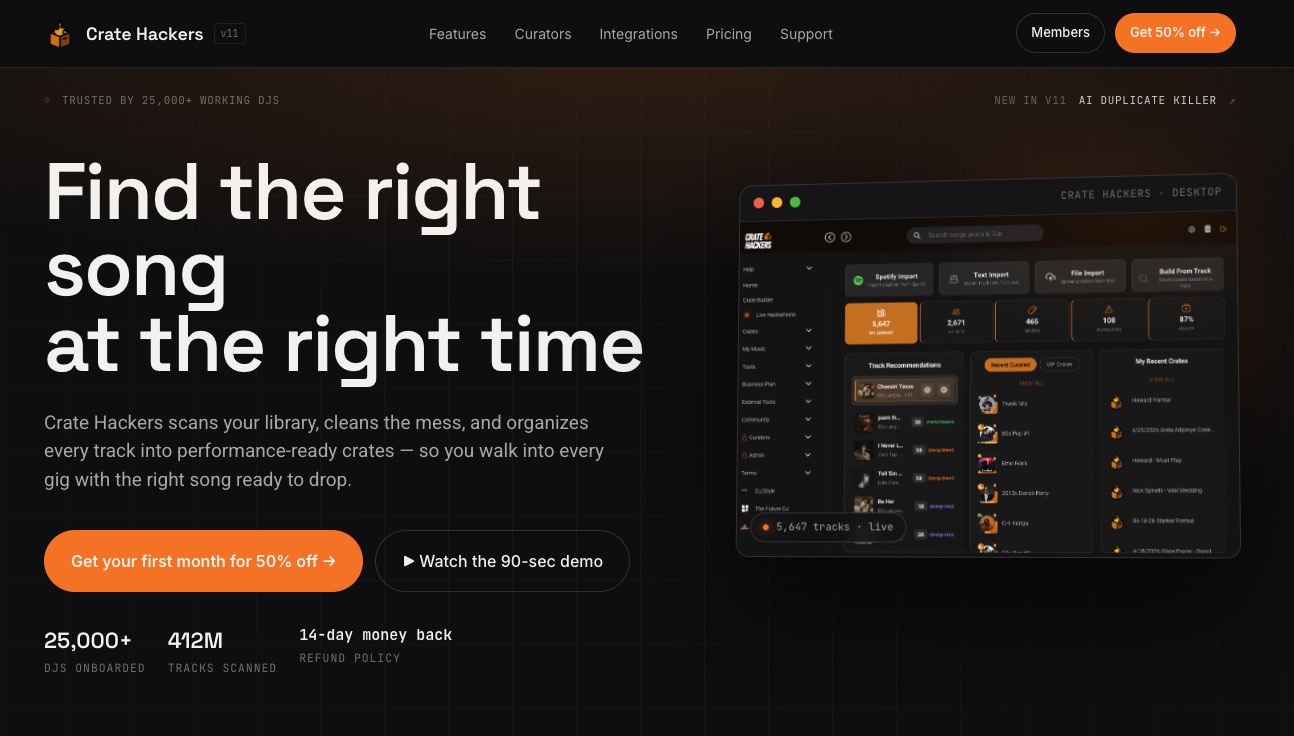
Cratehackers is built specifically for working DJs who want to stop wasting prep time. The platform matches your local files against Spotify, Apple Music, and Tidal playlists, then exports clean crates directly to Rekordbox, Serato, and Virtual DJ. Duplicate tracks gone. Missing metadata fixed. Playlists organized. Whether you are managing a growing library or just getting your first converted Spotify imports under control, Cratehackers cuts the time you spend organizing and puts it back into your sets.
FAQ
Can you directly import Spotify playlists into Rekordbox?
No. Rekordbox cannot directly import Spotify audio because tracks are DRM protected and encoded in OGG format, which Rekordbox does not support.
What format should I convert Spotify tracks to for Rekordbox?
Convert Spotify tracks to MP3, WAV, FLAC, or AIFF. MP3 at 320kbps is the most practical choice for balancing quality and file size in a DJ library.
Does the official Rekordbox Spotify integration work offline?
No. The official streaming integration requires Spotify Premium and a live internet connection. Tracks cannot be cached or used offline through this method.
Why are my Spotify playlists showing empty in Rekordbox?
Empty playlists in the Rekordbox streaming integration are usually caused by software updates or connection issues. Log out and back in, run a network test, and check that both apps are on their latest versions.
How do I avoid missing file errors after importing?
Set a fixed folder for your converted Spotify files before importing them into Rekordbox. Never move files after Rekordbox has indexed them, or you will need to manually relocate each broken track reference.