TL;DR:
- A virtual DJ crate setup checklist ensures your music library is scanned, matched, and exported correctly to prevent errors during gigs. Proper preparation involves a clean library, matched tracks, enabled M3U support, and correct folder visibility, along with regular maintenance and external drive connection. Following these steps guarantees reliable crates that load seamlessly in VirtualDJ, allowing DJs to focus on mixing and energy during performances.
A virtual DJ crate setup checklist is a step-by-step preparation system that confirms your music library is scanned, matched, and exported correctly so your crates load without errors inside VirtualDJ. Most crate failures at gigs are not caused by bad music choices. They are caused by skipped prep steps. This guide covers every checkpoint, from scanning your library in Cratehackers to fixing visibility issues inside VirtualDJ, so you walk into every show with crates that actually work. The industry term for this process is “playlist export workflow,” and the checklist format is the fastest way to own it.
1. Your virtual DJ crate setup checklist starts with a clean library scan
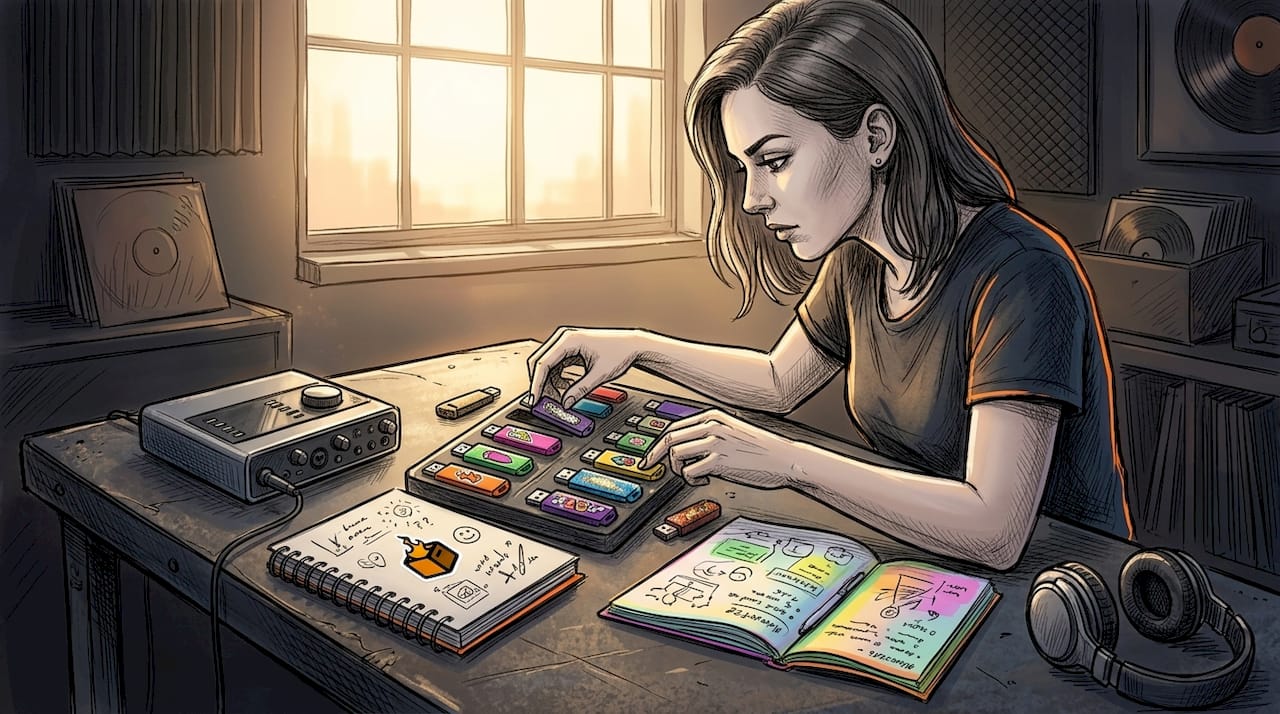
Before you build a single crate, your music library needs to be in one place. Cratehackers recommends keeping music in one main folder to reduce export failures caused by scattered files. Scattered files mean broken paths, and broken paths mean missing tracks mid-set.
Here is what to do before you scan:
- Create one master music folder on your internal drive, for example: "Music/DJ Library`
- Move all subfolders into that master folder
- Use Cratehackers’ Folder Flattener to consolidate scattered tracks into a clean structure
- Add that master folder to Cratehackers under the Library settings
Once your folders are set, run a full library scan inside Cratehackers. Let the scan finish completely before you do anything else. Partial scans produce incomplete track matching, which breaks exports downstream. After the scan, use the Re-sync function every time you add new music to keep your library current.
Pro Tip: Back up your entire music folder before restructuring or running Folder Flattener. One wrong move during consolidation can orphan hundreds of files, and a backup takes five minutes.
2. Verify track match status before you export anything
This step kills more gigs than any other. Cratehackers flags every track in your library with a status: matched, missing, or needs review. Only matched tracks export correctly into VirtualDJ playlists. Unmatched tracks look fine inside Cratehackers but show up as empty slots inside VirtualDJ.
Open your crate, filter by “needs review” or “missing,” and fix those tracks before you export. This usually means pointing Cratehackers to the correct file location or re-downloading tracks that were deleted. Spend ten minutes here and save yourself a panic moment at the venue.
3. Enable M3U playlist support in VirtualDJ settings
VirtualDJ does not read exported crates by default. You have to turn on M3U playlist support first. VirtualDJ requires M3U options set to Yes in Settings > Options before it can read crates exported from Cratehackers.
Here is the exact path:
- Open VirtualDJ
- Go to Settings > Options
- Search for “M3U” in the options filter
- Set M3U playlist support to Yes or On
- Click Apply and close Settings
Do this once and it stays enabled. Skip it and your crates will never appear, no matter how clean your export is.
Pro Tip: Screenshot your VirtualDJ options panel after configuration. If VirtualDJ updates and resets your settings, you have a reference to restore them in under two minutes.
4. Export your crate from Cratehackers using the right method
Cratehackers gives you two export paths: a VirtualDJ-specific export and a generic M3U export. Use the VirtualDJ export whenever it is available. It writes the playlist file directly to the location VirtualDJ expects, which removes one manual step from the process.
If the VirtualDJ export option is not available in your plan, use the M3U export and follow these steps:
- Export the crate as an M3U file from Cratehackers
- Note the file destination folder
- Open VirtualDJ
- Navigate to the M3U Playlists section in the browser
- Right-click and choose “Add Playlist” or drag the M3U file into the browser panel
- Confirm the tracks load correctly
Either path works. The VirtualDJ export is faster. The M3U path gives you more control over file placement.
5. Restart VirtualDJ after every export
This sounds obvious. DJs skip it constantly. VirtualDJ caches its browser state on launch, so crates exported after VirtualDJ is already open will not appear until you restart the application. Export from Cratehackers, restart VirtualDJ, then find the crate under M3U Playlists. That sequence is non-negotiable.
After restart, load one track from the crate into a deck. Confirm it plays. Do not assume the crate works just because it appears in the browser. A visible crate with broken file paths is still a broken crate.
6. Troubleshoot crate visibility with VirtualDJ’s MyLists settings
If your crates still do not appear after a restart, the problem is almost always a configuration issue, not data loss. Most missing playlists in VirtualDJ are caused by folder visibility settings, not corrupted files. VirtualDJ moved to a MyLists model that merged playlists and virtual folders, and the visibility settings are not obvious.
Check these settings:
- Search for
browserShowLegacyM3UPlaylistsin VirtualDJ Options and set it to Yes - Search for
rootFoldersLocationand change it from “hidden” to “root” to make the MyLists folder visible - Restart VirtualDJ after any settings change
The fastest way to confirm a settings fix worked: save a test playlist inside VirtualDJ, restart, and check if it appears under MyLists. If it does, your visibility settings are correct.
Pro Tip: Keep a text file called “VDJ Config Notes” in your DJ folder. Log every settings change you make in VirtualDJ with the date. When an update resets something, you know exactly what to restore.
7. Confirm external drives are connected before opening VirtualDJ
If your music lives on an external SSD or USB drive, connect that drive before launching VirtualDJ. VirtualDJ only shows media when the drive is physically connected at launch. Plug in after opening and the tracks appear missing even though the playlist is intact.
This is one of the most common “my crates disappeared” moments DJs report. The crate is fine. The drive was not connected. Build the habit of connecting all drives before you open any DJ software, every single time.
8. Use an inbox folder for all new music
Every track you download goes into one inbox folder first. Nothing goes directly into a crate. This single habit prevents your crates from filling up with untagged, unreviewed tracks that derail your set.
Process your inbox on a schedule. Listen to each track, confirm the BPM and key are accurate, add genre and energy tags, then move it to the correct folder. Only after that does it get added to a crate. This workflow, described in professional DJ library management guides, is what separates DJs who are always ready from DJs who are always scrambling.
9. Organize crates by function, not just genre
Genre crates are a starting point, not a system. Build crates around how you actually use music at a gig. Think in lanes: openers, peak hour, cool-down, requests, wedding first dances, corporate background. Each lane is a crate. Each crate has a job.
For event-specific gigs, build a dedicated crate at least 48 hours before the show. Include 20 to 30 percent more tracks than you expect to play. That buffer gives you room to read the room without scrolling through your entire library mid-set. You can learn more about reading your library efficiently to make this process faster.
10. Lock down metadata before gig day
BPM, key, and tags are not decoration. They are navigation tools. If your BPM is wrong, your harmonic mixing breaks. If your tags are inconsistent, your filters return garbage results. Audit your metadata during the inbox processing step, not the night before a gig.
Use consistent naming conventions across your library. Pick a tag format and stick to it. For example: Genre/Subgenre in the genre field, energy level 1 to 5 in the comment field, and event type in the grouping field. Consistent tags mean fast filtering. Fast filtering means you find the right track in seconds, not minutes.
11. Schedule weekly library maintenance
Treat crate organization as an ongoing system, not a one-time setup. Set a recurring 30-minute block each week to process your inbox, remove duplicates, archive tracks you no longer play, and re-sync Cratehackers after any additions. Weekly maintenance prevents the library from becoming a chaos scroll that costs you focus during a live set.
Retire tracks that have not been played in 12 months into an archive folder. They stay in your library but out of your active crates. Leaner crates load faster and are easier to navigate under pressure.
Key takeaways
A reliable VirtualDJ crate setup requires a clean library scan, matched tracks, enabled M3U support, and correct folder visibility settings before a single crate will load correctly at a gig.
| Point | Details |
|---|---|
| Scan before you build | Complete a full Cratehackers library scan and Re-sync before exporting any crate. |
| Match tracks first | Only matched tracks export correctly; fix missing and unmatched files before export. |
| Enable M3U in VirtualDJ | Set M3U playlist support to Yes in VirtualDJ Settings > Options or crates will not appear. |
| Fix visibility settings | Set browserShowLegacyM3UPlaylists and rootFoldersLocation to avoid missing playlist issues. |
| Maintain weekly | Process your inbox, remove duplicates, and re-sync Cratehackers on a weekly schedule. |
Why I stopped winging my crate prep
I used to build crates the night before a gig. Sometimes the morning of. I told myself I worked better under pressure. What I was actually doing was gambling with my set.
The first time I showed up to a corporate event and half my crates were empty because I had forgotten to connect my external drive, I started taking this seriously. The second time I lost 20 minutes troubleshooting a VirtualDJ visibility setting I had never heard of, I built a checklist.
What I have learned is that the checklist is not about being overly careful. It is about removing decisions from gig day. When your prep is locked in, your brain is free to read the room, feel the energy, and make creative choices. That is the job. The technical stuff should be invisible by the time you hit play.
Cratehackers changed how I approach this. Scanning, matching, and exporting from one place, directly into VirtualDJ, cut my prep time significantly. But the tool only works if you follow the workflow. A great app with a sloppy process still produces sloppy results.
Build your own version of this checklist. Adjust it to your gear, your gig types, your library size. The specific steps matter less than the discipline of running them every single time.
— Dominick
Get your crates gig-ready with Cratehackers
You have the checklist. Now you need the tool that makes it fast.
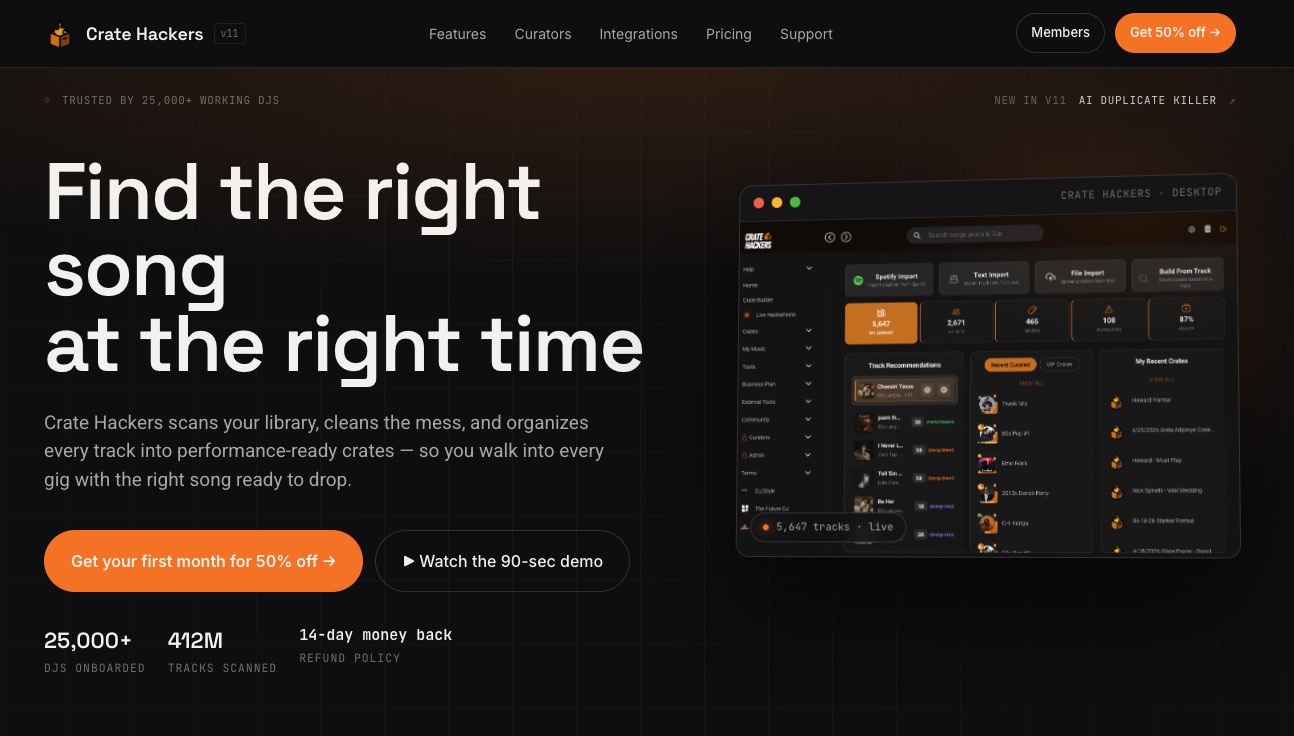
Cratehackers is built for exactly this workflow. Scan your library, build crates, match tracks, and export directly to VirtualDJ in one place. No manual file hunting. No broken paths. No missing tracks at showtime. The Duplicate Killer cleans your library automatically, and the Re-sync feature keeps everything current after every music drop. Whether you are prepping for a wedding, a club night, or a corporate event, Cratehackers gets your crates performance-ready faster than any manual process. Try it and stop gambling with your gig prep.
FAQ
What does a virtual DJ crate setup checklist include?
A virtual DJ crate setup checklist covers library scanning, track matching, M3U playlist activation in VirtualDJ, crate export from Cratehackers, and post-export visibility verification. Each step prevents a specific category of failure that can break your set.
Why are my exported crates not showing up in VirtualDJ?
The most common cause is a missing M3U playlist setting or incorrect folder visibility configuration in VirtualDJ Options. Set browserShowLegacyM3UPlaylists to Yes and rootFoldersLocation to root, then restart VirtualDJ.
How do I export a crate from Cratehackers to VirtualDJ?
Enable M3U playlist support in VirtualDJ Settings > Options, then export your crate from Cratehackers using the VirtualDJ export option or as a generic M3U file. Restart VirtualDJ and find the crate under M3U Playlists in the browser.
Why do my tracks show as missing inside VirtualDJ crates?
Missing tracks are usually caused by an external drive that was not connected before VirtualDJ launched, or by unmatched file paths in Cratehackers. Connect all drives before opening VirtualDJ and verify track match status in Cratehackers before every export.
How often should I maintain my DJ crate library?
Weekly maintenance is the standard for working DJs. A 30-minute weekly session to process new tracks, remove duplicates, and re-sync your library keeps your crates clean and prevents last-minute chaos before gigs.