TL;DR:
- Managing your DJ library on Mac involves using dedicated DJ software with smart playlists and proper metadata tagging to ensure quick access during performances. Maintaining a simple folder structure and automating backups with tools like Carbon Copy Cloner protects your collection from data loss. Consistent organization, careful import workflows, and proper backups enable confident, efficient set preparation.
You sit down to prep for a gig. You open your DJ software and see 8,000 tracks with no real order. Sound familiar? Learning how to manage your DJ library on Mac is not optional if you want to perform with confidence. It is the difference between grabbing the right track in three seconds and scrolling through chaos mid-set. This guide covers the tools, folder strategies, import workflows, backup methods, and troubleshooting steps you need to build a library that actually works for you.
Table of Contents
- Key takeaways
- How to manage your DJ library on Mac
- Setting up your folder structure and metadata
- Importing, analyzing, and curating your library
- Backup strategies for your Mac DJ library
- Troubleshooting common issues and optimizing your workflow
- My honest take on library management
- How Cratehackers helps you organize faster
- FAQ
Key takeaways
| Point | Details |
|---|---|
| Use the right Mac software | Tools like Lexicon and your core DJ software handle metadata syncing and cross-platform control better than folder browsing alone. |
| Folder structure is not enough | Physical folders give you a starting point, but smart playlists and metadata do the real performance navigation work. |
| Follow the 3-2-1 backup rule | Keep three copies of your library across two media types with one stored offsite to protect your collection. |
| Import carefully to avoid data loss | Always analyze tracks before adding them permanently and remove low-quality files before they clutter your workflow. |
| Automate your backups | Scheduled backups with tools like Carbon Copy Cloner protect your work without relying on manual effort. |
How to manage your DJ library on Mac
The tools you choose shape everything. Mac gives you a solid foundation. But the software running on top of it is what actually decides how fast you can find a track at 1 AM when the crowd is waiting.
Core DJ software options
Most DJs are already inside one of the major platforms. Here is how they stack up for library management specifically:
| Software | Mac Compatible | Smart Playlists | Metadata Editing | Export to Other Platforms |
|---|---|---|---|---|
| Rekordbox | Yes | Yes | Yes | Limited |
| Serato DJ Pro | Yes | Yes (Smart Crates) | Yes | Via Lexicon |
| djay Pro | Yes | Yes | Moderate | Limited |
| Engine DJ (Desktop) | Yes | Yes | Yes | Yes |
Each platform handles your DJ music collection on Mac differently. Rekordbox is tight on library control. Serato has Smart Crates that filter by BPM, key, and genre automatically. Engine DJ desktop syncs directly to Denon hardware. djay Pro supports smart playlists and works natively with Apple Silicon.
Third-party management tools
Your core DJ app is not always enough. Lexicon is the tool most serious Mac DJs use on top of their software. It supports Serato 4.0, track timeline visualization, and play history tracking. That means you can see what you actually played, when, and how many times. That data changes how you curate.
Lexicon also solves one of the most painful Mac DJ problems: moving a library from one software platform to another without losing cue points, loops, and metadata. It does non-destructive library conversions that other tools simply cannot match.
Pro Tip: Never rely on iCloud to sync your DJ database files. iCloud can overwrite or conflict with local versions of Rekordbox and Serato databases, causing corrupted libraries. Use iCloud only for audio file backup, not database syncing.
Setting up your folder structure and metadata
This is where most DJs get it wrong. They build elaborate folder trees sorted by BPM, energy level, or key. It feels organized. It is not.
Organizing physical folders by BPM or key is one of the most common mistakes in DJ library management. Your software already handles that filtering. The folder structure just needs to be logical enough that you can find a raw audio file when something breaks.
The folder structure that actually works
Keep it simple. Three levels maximum:
- Top level: Genre or source (e.g., Hip-Hop, House, Record Pool Downloads, Purchased)
- Second level: Year or artist, depending on your workflow
- Third level: Individual track files
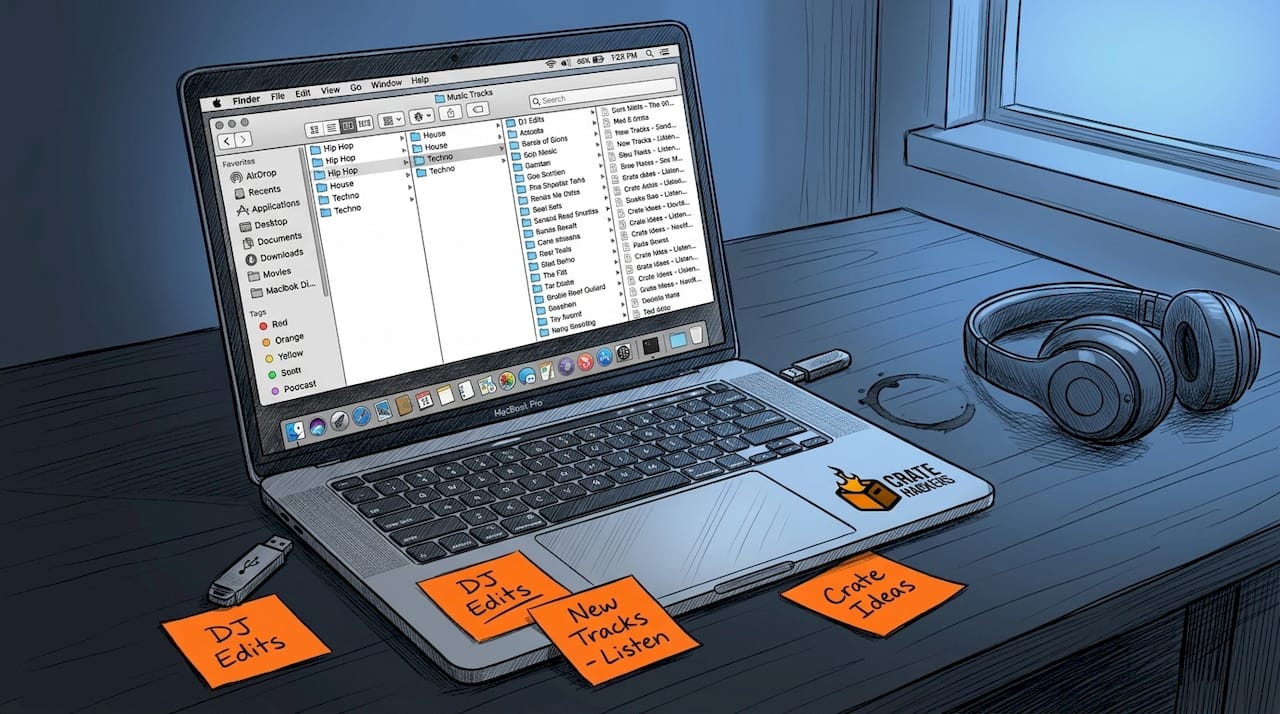
That is it. No BPM folders. No energy subfolders. Those live inside your software as smart playlists and crates, not on your Mac’s hard drive.
Separating your physical file location from your software playlists is critical. Your Finder folder is a filing cabinet. Your DJ software is the brain that sorts and surfaces tracks by whatever filter you need at that moment. Smart crates and metadata are what enable quick track retrieval during actual set prep.
Metadata is your real organization system
Every track in your library should have accurate BPM, key, genre, year, and energy tags. Most DJ software auto-analyzes BPM and key on import. But genre and energy usually need your attention.
Use your DJ software’s built-in tag editor as your primary metadata tool. For batch editing or fixing messy tags before importing, tools like Mp3tag (free, Mac-compatible via Wine or the native beta) work well for cleaning up downloaded files.
Pro Tip: Create a “Needs Review” smart playlist in your DJ software that automatically catches tracks with missing BPM, key, or genre tags. Clear it every week. An empty inbox means a clean library.
Importing, analyzing, and curating your library
Getting tracks into your library safely is a process, not a drag-and-drop. One wrong move and you are staring at missing file errors on the night of a gig.
Here is the workflow that protects you:
- Drop new tracks into a staging folder first. Do not import directly from your Downloads folder or a USB drive. Create a “Inbox” folder on your Mac and route everything there first.
- Listen before you analyze. Spend 30 seconds with each track. Check audio quality. A 128kbps MP3 from a sketchy source will sound terrible on a club system. Delete it now, not later.
- Import to DJ software with “Copy files to library” enabled. This moves your files into one centralized location. No more broken file paths from moved or deleted originals.
- Run full analysis immediately after import. Let Rekordbox, Serato, or Engine DJ analyze BPM, key, and waveform. Do not skip this. Playing unanalyzed tracks live is asking for beat grid disasters.
- Tag genre and energy manually. Auto-analysis does not know that a track is a peak-hour anthem versus a warm-up record. You do. Tag it while the track is fresh in your head.
- Add to relevant smart playlists or crates. Do not just leave it in your master library. Route it to the right crates now, before it disappears into the void.
- Wait 24 hours before finalizing. Revisiting new tracks after a day helps you decide if they actually belong in your permanent collection. First impressions are unreliable. Sleep on it.
Pro Tip: When you manage your DJ library offline on a laptop for travel or backup purposes, keep a mirrored copy of your full analyzed library on an external SSD. Use the same folder structure and re-link the same software database so there is zero re-analysis needed when you plug in.
The curation step is where most DJs leave value on the table. Do not just collect tracks. Build lanes. A “2 AM Closing” crate works differently from an “Opening Set” crate. When you organize DJ music files on Mac into purpose-built crates rather than giant genre buckets, you perform faster and with more confidence.
Backup strategies for your Mac DJ library
Your library is years of work. Lose it once, and you understand why this section matters.
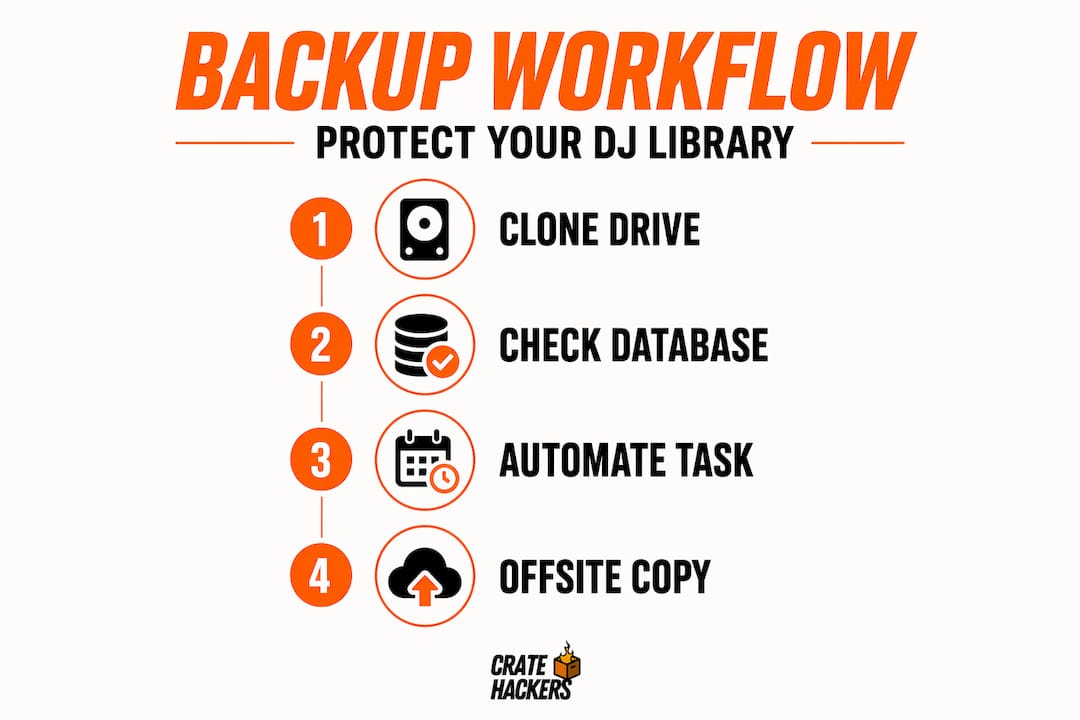
The gold standard is the 3-2-1 backup strategy: 3 total copies, stored on 2 different media types, with 1 stored offsite. For a Mac DJ, that looks like this:
| Copy | Where | Purpose |
|---|---|---|
| Primary | Internal Mac SSD | Working library |
| Backup 1 | External USB SSD | Fast local restore |
| Backup 2 | NAS or second external drive | Redundant local copy |
| Offsite | Cloud storage (audio files only) | Disaster recovery |
What to back up:
- Your audio files (the actual MP3, WAV, FLAC files)
- Your DJ software database files (Rekordbox XML, Serato folders, Engine Library database)
- Your metadata exports or Lexicon backups
- Your custom mappings and controller settings
What to avoid:
- Syncing your DJ software database directly through iCloud or Dropbox. Cloud syncing can cause accidental deletions across devices and corrupt your local database silently.
- Using NAS as your live working drive. NAS is for backup, not real-time performance. Latency and network drops will wreck a set.
For automation, Carbon Copy Cloner is the go-to for Mac DJs. Set a scheduled task to clone your music folder and database files to your external drive every night. You never think about it again until you need it.
Troubleshooting common issues and optimizing your workflow
Even a well-built library develops problems. Here are the ones Mac DJs hit most often and how to fix them.
Common problems and fixes:
- Duplicate tracks: These pile up fast when you import from multiple sources. Lexicon has a built-in duplicate finder. Cratehackers offers an AI-powered Duplicate Killer that scans your collection and surfaces near-matches, not just exact file name matches.
- Corrupted databases: This usually comes from a hard shutdown during a write process. Keep a weekly backup of your software database folder. Restore from the most recent clean version.
- Lost metadata after software updates: Always export your library as XML or Lexicon backup before updating major DJ software versions. One-click restore if something breaks.
- Missing file errors: These happen when you move files after importing them. In Serato and Rekordbox, use the built-in “Relocate Lost Files” function. Then stop moving files outside of your software.
On the streaming question: streaming is powerful for discovery but should not replace local ownership for critical gigs. You cannot manage your DJ library offline on a laptop without local files. Connectivity dies. Streaming licenses expire. Songs get pulled. Self-hosting your music library using tools like Navidrome gives you full control and consistent playback access regardless of what a streaming service decides to do.
Pro Tip: When managing multiple DJ software platforms, treat one as your master library and use Lexicon to sync outward to the others. Never try to maintain two separate master databases. That path leads to conflicts, missing cue points, and frustration.
My honest take on library management
I have talked to a lot of DJs who spent months building the perfect folder structure on their Mac. Color-coded. Nested. Beautifully logical. And they still panic during set prep because they cannot find the track they heard last week.
Here is what I have learned: physical organization is just the container. It is the floor, not the ceiling. The real work happens in your software. Metadata, smart playlists, play history, and cue points are what modern DJ library management actually runs on. Folders just stop your files from disappearing.
What I have seen hurt DJs the most is neglecting backups until something breaks. No one runs automated backups the day after they buy new gear. They do it the week after they lose two years of cue points. Do not be that person. Set up Carbon Copy Cloner this week, not next month.
The other thing I would push back on: do not let your library grow unchecked just because storage is cheap. A bloated library is a slow brain. Revisit your collection once a quarter. Remove what you will not play. Tighten the crates. Less is faster.
— Dominick
How Cratehackers helps you organize faster
Managing thousands of tracks manually takes time you do not have. Cratehackers was built specifically for working DJs who need to get organized without spending hours doing it.
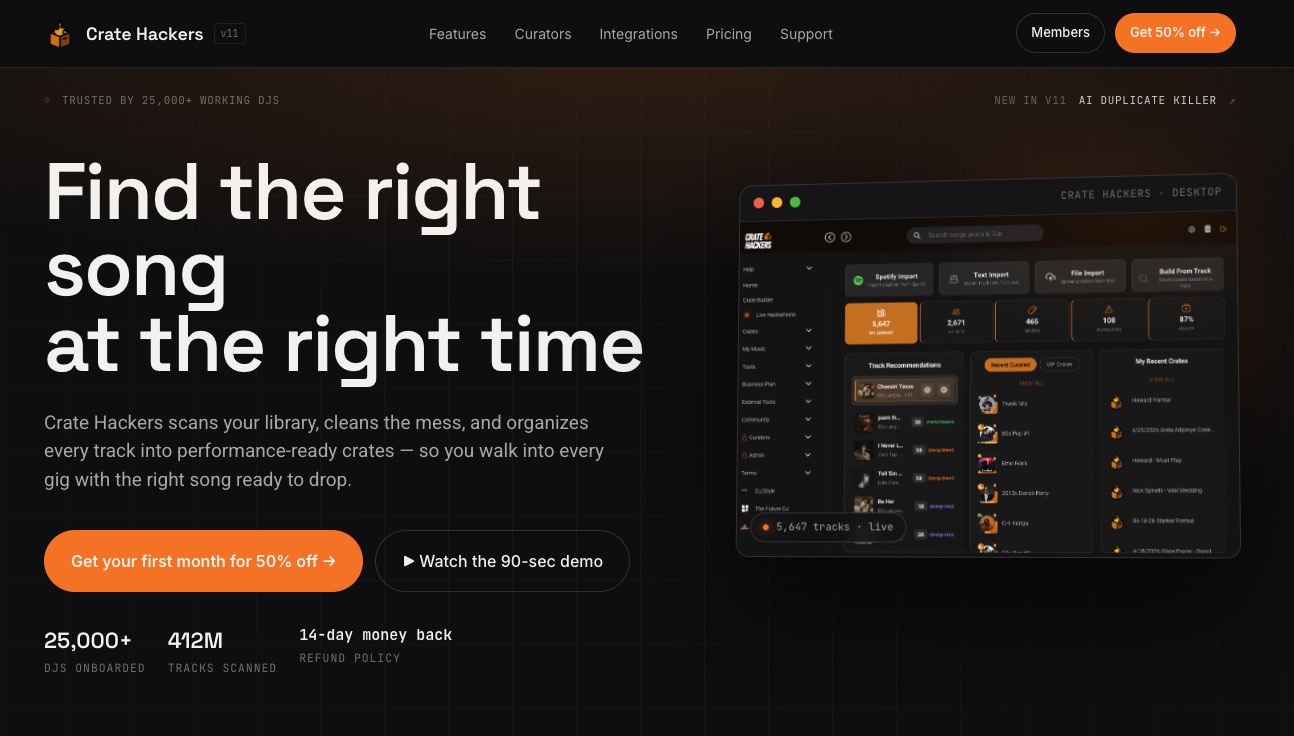
The platform runs natively on macOS, scans your entire music collection, and uses AI to kill duplicates, build crates automatically, and match your library to Spotify, Apple Music, and Tidal playlists. Then it exports directly to Rekordbox, Serato, or Virtual DJ, with your cue points and metadata intact. No rebuilding from scratch. You also get curator drops from professional DJs, so your crates stay fresh without extra digging. If you want the best DJ library management on Mac without the manual grind, Cratehackers is worth exploring for your next set prep session.
FAQ
What is the best way to manage a DJ library on Mac?
Use your core DJ software (Rekordbox, Serato, or Engine DJ) for smart playlists and metadata, keep a simple three-level folder structure in Finder, and use a tool like Lexicon for cross-platform syncing and duplicate management.
How do I import music into my DJ library on Mac without losing data?
Create a staging “Inbox” folder, check audio quality before importing, enable the “Copy files to library” option in your software, and run full BPM and key analysis immediately after import to avoid broken file paths or missing data.
How do I back up my DJ library on Mac?
Follow the 3-2-1 backup rule: keep three copies on two media types with one stored offsite. Use Carbon Copy Cloner to automate scheduled backups to an external SSD and avoid syncing your software database files through iCloud.
Can I manage my DJ library offline on a laptop?
Yes. Keep a mirrored, fully analyzed copy of your library on an external SSD using the same folder structure and DJ software database. This gives you a ready-to-play backup anywhere without re-analyzing or re-crating tracks.
Why do duplicate tracks keep appearing in my DJ library?
Duplicates build up when you import from multiple record pools, downloads folders, or old drives without checking first. Use a dedicated duplicate detection tool that catches near-matches by title and BPM, not just identical file names.